How to use Timeline Visualizer: from Timeline.json to a shareable travel video
Published Aug 22, 2026 · 4 min read
Available in: English · 日本語 · 한국어 · Bahasa Indonesia · Tiếng Việt · 繁體中文
In this article
Timeline Visualizer turns the location history Google Maps keeps on your phone into a short animated video: a map, a moving marker, your real route drawn behind it, the date and distance ticking up, and a final zoom-out of the whole trip. Everything runs in your browser — the file is never uploaded.
The whole flow takes about five minutes the first time. The screenshots below are from a phone.
1. Export your Timeline from Google Maps
You need the JSON file Google Maps exports from the phone itself (Timeline moved on-device in 2024, so Google Takeout usually has nothing useful anymore).
- iPhone: open Google Maps → profile picture → Settings → Location & Privacy → Export Timeline data → in the share sheet tap Save to Files. The file is called
Timeline.jsonorlocation-history.json— both work exactly the same. - Android: open the phone's Settings app → Location → Location services → Timeline → Export Timeline data → Continue → choose a folder → Save. The file is usually called
Timeline.json.
2. Open the tool and choose the file
Go to the home page on the same phone and tap Choose Timeline.json. On a computer you can also drag the file onto the page. Nothing is sent anywhere: the file is parsed locally and you will see a summary like "48,210 points · Jan 2024 – Dec 2025".
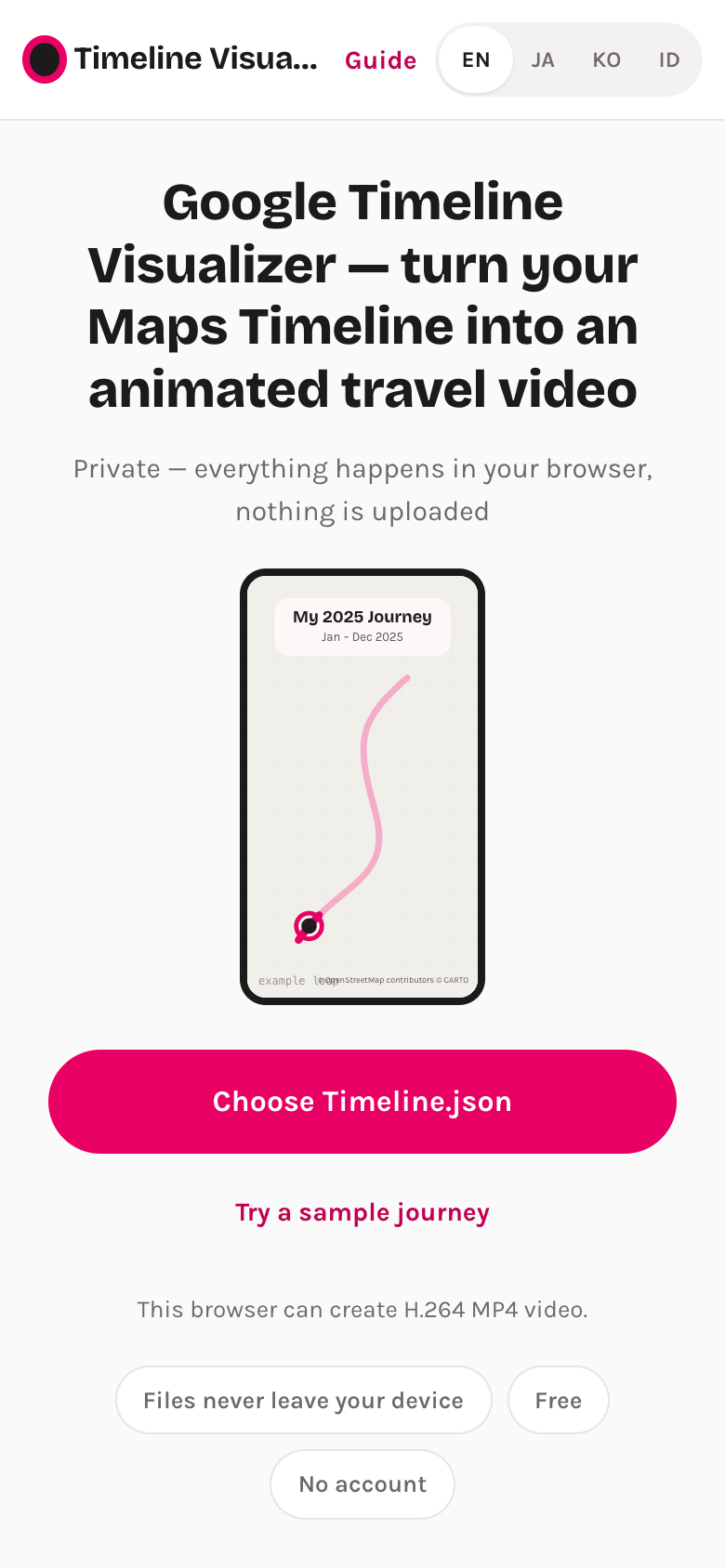
If you just want to see how it works before exporting, tap Try a sample journey — it loads a small fictional route.
3. Pick the period
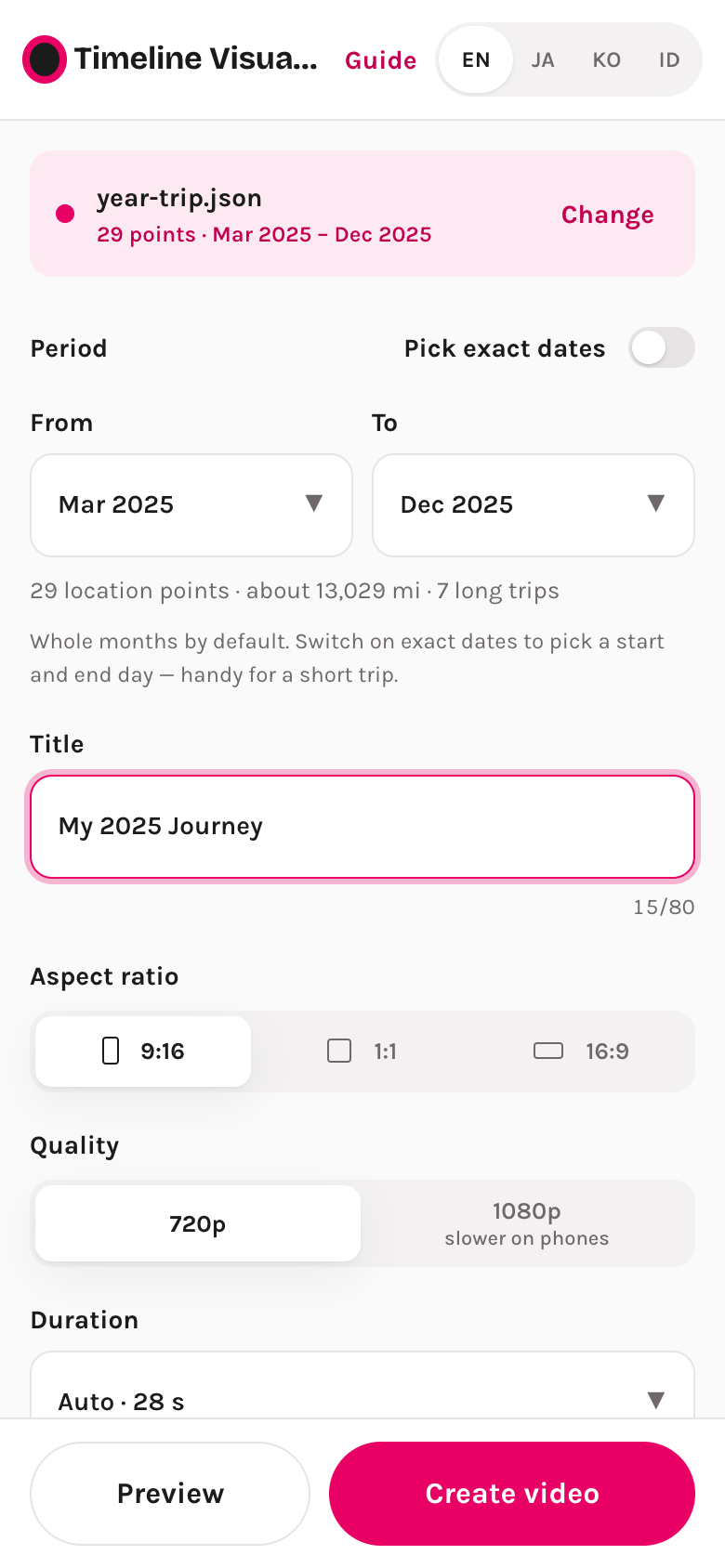
By default the tool selects the latest full year. Use From / To to pick whole months, or switch on Pick exact dates for a short trip (for example 3–12 October). The line under the pickers tells you how many points, how far you travelled and how many long trips (flights, long drives) are inside the selection.
4. Choose how the video looks
- Title — appears on the card at the top of the video.
- Aspect ratio — 9:16 (default) for Reels, TikTok, Shorts and X; 1:1 for feeds; 16:9 for YouTube or a TV.
- Quality — 720p is fast and fine for phones; 1080p is sharper but takes longer, especially on older phones.
- Duration — Auto picks a length from how much travel the period contains (a weekend ≈ 15 s, a full year ≈ 45–60 s). You can also choose a fixed length or set anything from 10 to 300 seconds.
- Camera — Steady follows the marker smoothly; Fixed keeps one zoom level; Dynamic follows local movement more closely.
- Music — three built-in tracks, all CC0 public-domain music from FreePD.com (free for commercial use, no attribution needed); the preview plays the track you picked, and the MP4 gets the same one. Turn it off for silence.
- Advanced — long-trip compression (keeps a 12-hour flight from eating half the video), GPS outlier filter, and kilometres / miles.
5. Confirm the map notice
The only thing the tool fetches from the internet is the map imagery for the areas your route passes through (from CARTO, based on OpenStreetMap). Tick the box to confirm — without it, Preview and Create video stay disabled and the page points you to the checkbox.
6. Preview
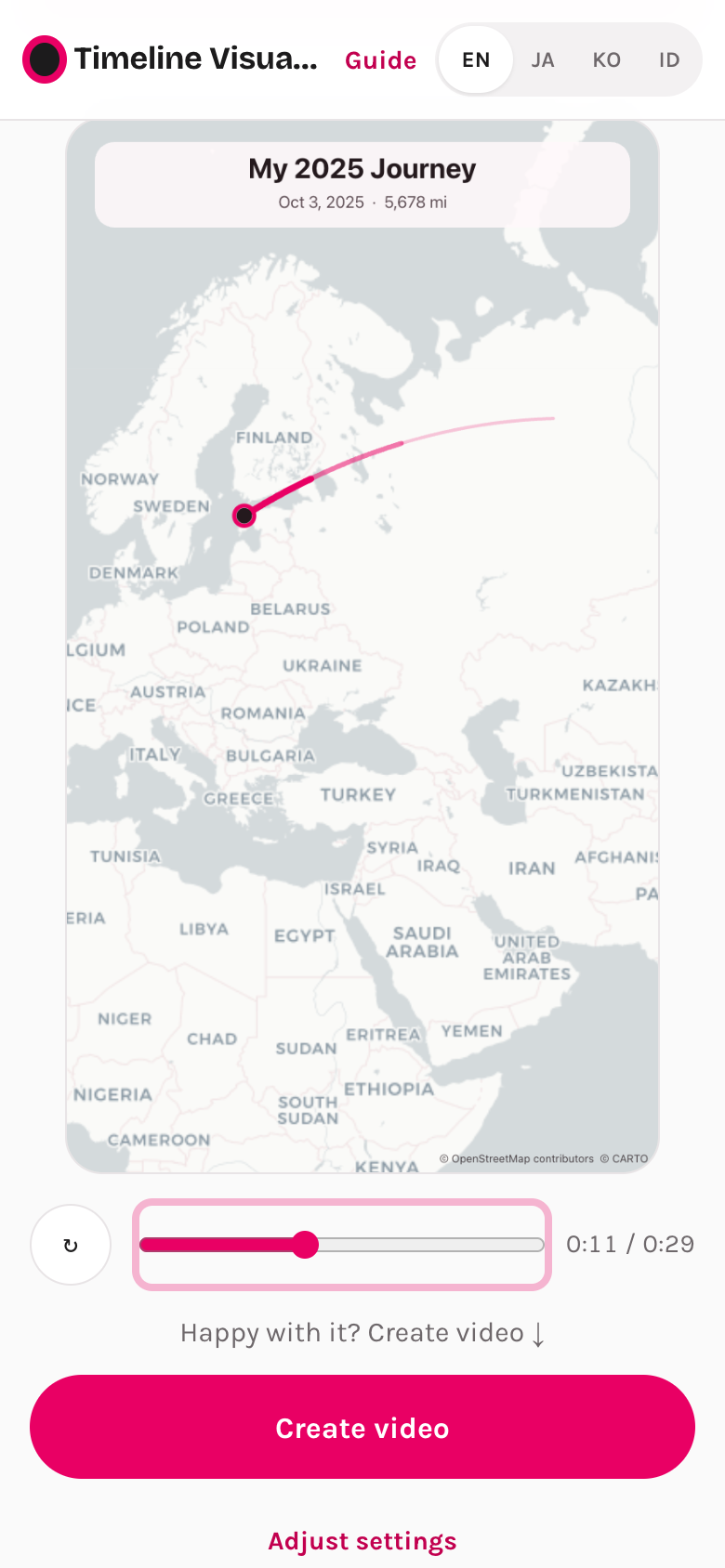
Tap Preview. The map loads, then the route plays with the selected music. Drag the progress bar to any moment, replay, or go back and Adjust settings. The preview is the exact same rendering the video will use.
7. Create the video and share it
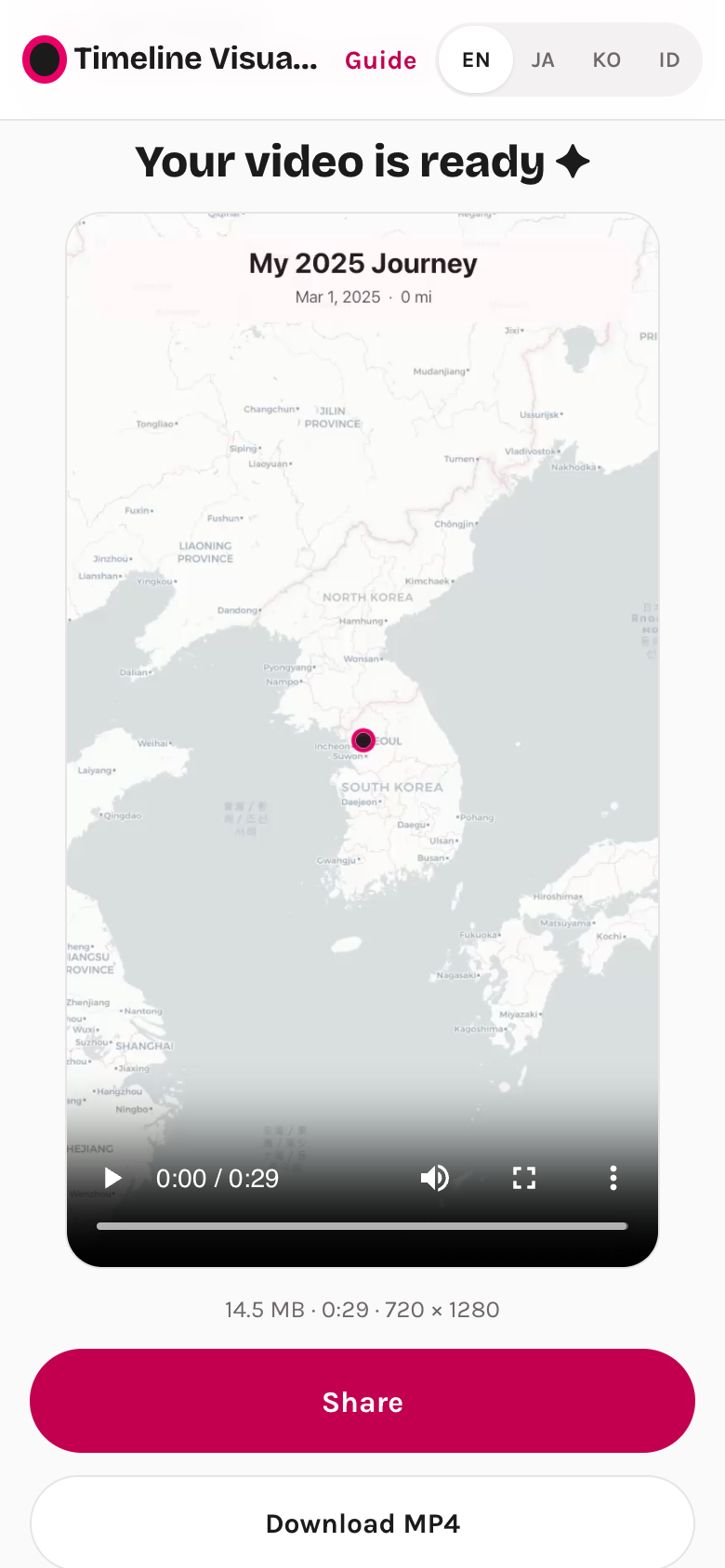
Tap Create video. You will see the stages — preparing the map, adding music, creating the MP4 with a percentage and time left. Keep the tab open; the screen stays awake. A 30-second 720p video usually takes one to two minutes on a recent phone.
When it is done: Share opens your phone's share sheet (Instagram, TikTok, WhatsApp, X…), Download MP4 saves the file, and Download overview image (PNG) gives you a still of the whole route for a post or story. Use #TimelineVisualizer if you want others to find it.
Ready? Export your Timeline and make your first video.
Open Timeline VisualizerFrequently asked
Is there an app or APK? No install is needed — this runs in the browser on iPhone, Android and PC. The Android APK you may have seen is the original open-source project this site is based on (not affiliated).
What if the file says "no usable locations"? Timeline was probably off, or the export is raw-only. Check Google Maps → profile picture → Your Timeline → ⋯ → Location & privacy settings, make sure it says Timeline is on, and export again after a few days of travel.
Can I use it on a computer? Yes — export on the phone, send the file to your computer (AirDrop, cloud drive, email) and open the site in Chrome, Edge or Safari. Any browser with WebCodecs works — Chrome, Edge, Safari 16.4+ and recent desktop Firefox; if yours cannot export, the page says so before you start.
Menu names follow Google's help page "Manage your Google Maps Timeline" and the Google Maps app as of August 2026.