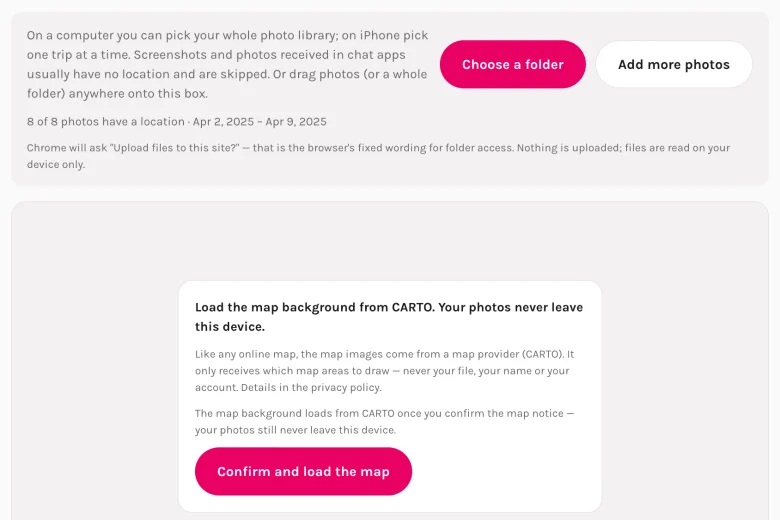
1. Drop your photos
Pick a trip's photos — or a whole folder on a computer. Your browser reads only the location and date inside each file; the images themselves are never sent anywhere.
Drop your photos and see every place you photographed on a map. Locations are read from the photos themselves, in your browser — nothing is uploaded. Then export it as one beautiful image.
On a computer you can pick your whole photo library; on iPhone pick one trip at a time. Screenshots and photos received in chat apps usually have no location and are skipped.
Scroll to zoom · drag to pan · click a stack to see its photos
Pick a trip's photos — or a whole folder on a computer. Your browser reads only the location and date inside each file; the images themselves are never sent anywhere.
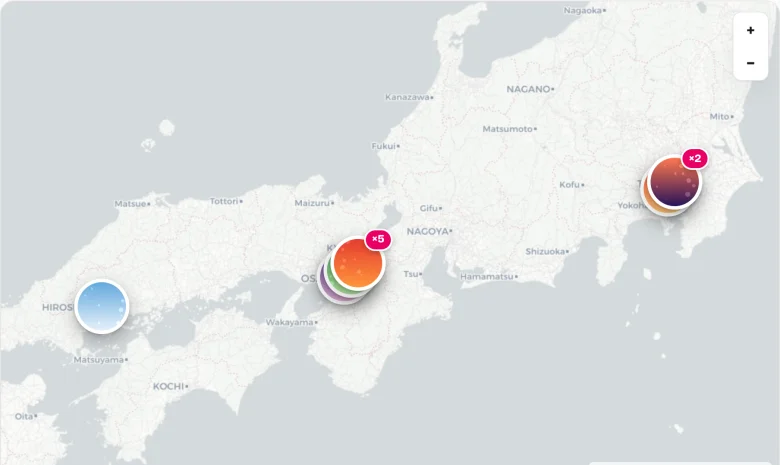
Every photo becomes a round thumbnail pin. Nearby shots stack into a pile with a count. Zoom in to spread them out, click a stack to flip through its photos.
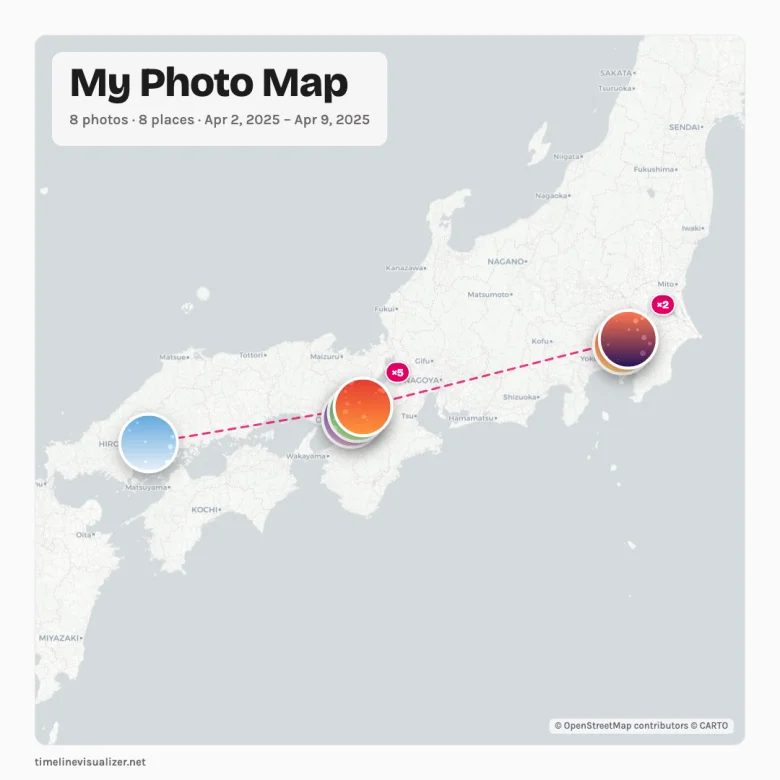
Pick a size — square for Instagram, story for Reels, wide for print — and download the PNG. Free, no watermark; the small site signature is optional.
The map can only show photos that still have their location data (GPS EXIF) inside the file. A quick guide:
| Camera photos (iPhone, Android camera, digital cameras) | Shows on the map | Carry GPS whenever location was on while shooting. |
|---|---|---|
| HEIC / iPhone formats | Shows on the map | Location is read in every browser. Safari also shows the photo in the pin; Chrome cannot preview HEIC, so those pins show a plain dot but still count and export. |
| Screenshots | Skipped | Never carry a location. |
| Photos received in WhatsApp, Messenger, LINE… | Skipped | Chat apps strip location data when compressing. |
| Any photo opened on Android browsers | Skipped | Android hides photo locations from websites (a system privacy rule) — use an iPhone or a computer. |
Locations are read from your photos in the browser. No account, no cloud, no "processing" on a server — unplug the network after the map loads and it still works.
Google Photos' map view is buried on phones and missing from the desktop website. This runs in any desktop browser — point it at your whole photo folder.
Built-in photo maps let you look; they don't let you export. Here the whole point is the PNG — four sizes, two styles, ready for Instagram, a family chat or a printed gift.
No subscription, no per-week charges, no ads. Pro ($2.99 once) only adds 2× resolution.
The same photos can drive our travel-video tool — same files, no re-selecting, rendered on your device too.
Google Photos does have a photo map — but only inside its phone apps, and Google has said the desktop website isn't getting one. If you are on a computer, there is simply no built-in way to see your pictures laid out on a map.
This page is the missing desktop map view: point it at the same photos (download a trip from Google Photos, or open your local photo folder) and the map appears in your browser — without handing your library to another cloud service, and with an image you can actually export at the end.