See all your photos on a map — free, in the browser, nothing uploaded
Published Sep 4, 2026 · 3 min read
In this article
Your photos already know where they were taken. Almost every picture from a phone camera carries GPS coordinates, and yet the obvious view — all my photos, as pins on a map — is strangely hard to get. Google Photos only shows a map in its mobile apps, not on the web. Apple Photos has a Places view, but it stays locked inside the app. And the photo-map websites that do exist mostly ask you to create an account, upload your photos, and then subscribe.
The Photo Map tool takes a different route: you point it at your photos, your browser reads the location tags locally, and the map appears on the spot. No account, no upload, no subscription. When it looks right, you export the whole thing as one image — square for feeds, story-sized for Instagram, or wide.
What it reads, and what leaves your device
Cameras store the location in the photo file itself (EXIF GPS tags). The page reads those tags with JavaScript running on your device — the photos are never sent anywhere. The only network requests are for the map background tiles of the areas your pins fall in, and the page asks you to confirm that before the map loads, same as our travel video tool.
Two practical notes:
- Screenshots and photos received in chat apps usually have no location — WhatsApp, for example, strips it. The tool counts how many of your photos carried a location and quietly skips the rest.
- Android browsers hide photo locations from websites as a privacy measure, so this works best on a computer or an iPhone. (On Android, your Google Timeline is the better source for travel maps.)
Step 1 — Drop your photos in
On a computer you can drag an entire folder — a trip's export, or even your whole picture library — straight onto the page. On iPhone, pick the photos of one trip. The counter tells you how many photos had a location and the date range they span.
Step 2 — Explore the map
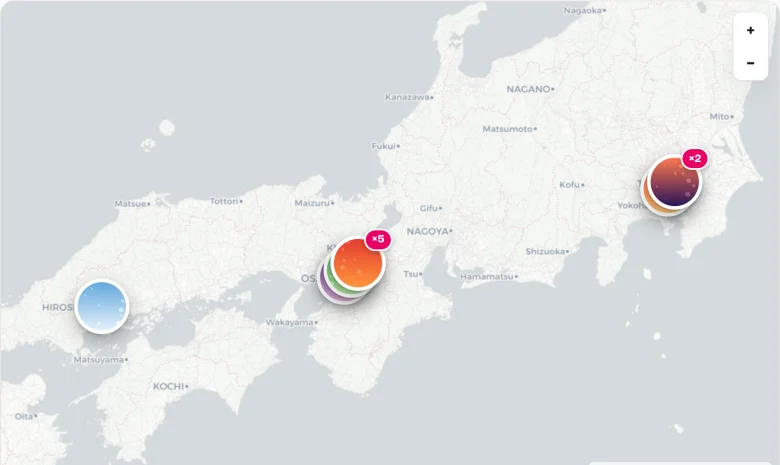
Every photo becomes a round thumbnail pin. Photos taken close together stack into one pin with a ×N badge — click a stack to flip through the photos in it, full size. Scroll to zoom, drag to pan; stacks split apart as you zoom in, so a dot labelled ×23 over Rome turns into your actual walking route through the city.
Step 3 — Export one image
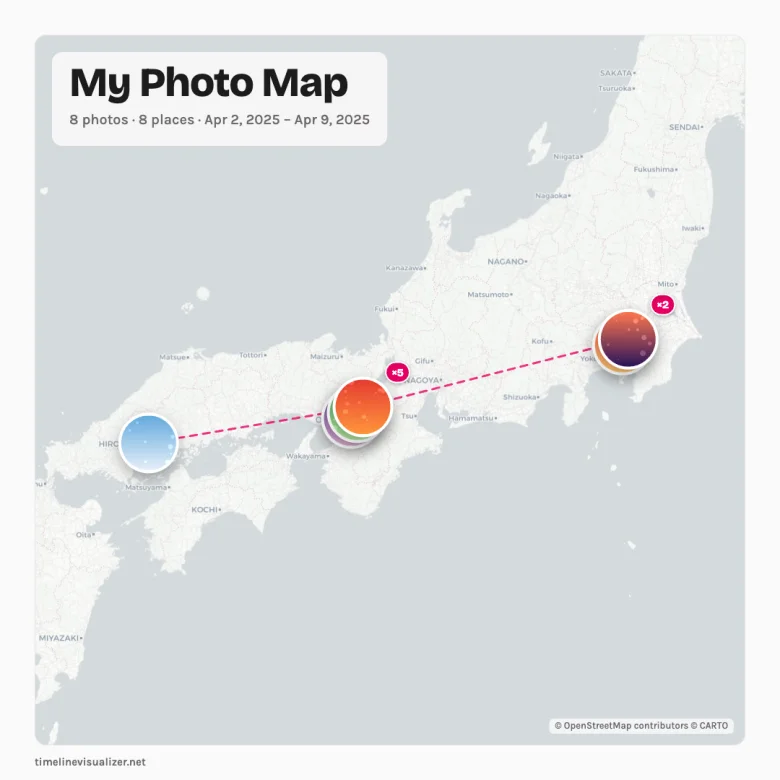
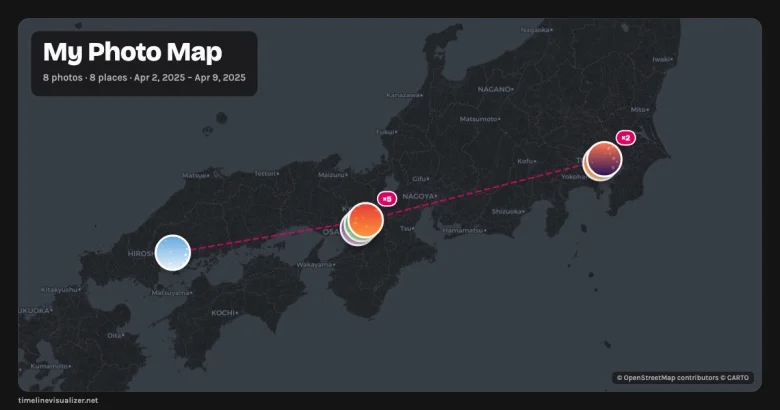
Give the map a title (or keep the default), optionally connect the photos with a dashed line in the order they were taken, pick a size, and download the PNG. The image is rendered in your browser too — a poster-style card with your title, the photo count, the places and the date range.
There is no upload step anywhere in this flow, which also means there is nothing to delete afterwards: close the tab and the photos are gone from the page. If you want to keep the map, the image is the save — post it, send it, or print it.
From a map to a moving map
If the pins tell a story worth more than one frame, the same photos can become a travel route video — the animated map flies from place to place with your photos appearing along the way, rendered to MP4, also entirely in your browser. And if what you actually want to count is countries or US states rather than photos, the Countries Visited Map and States Visited Map start from the same idea: your own data, read locally, into one shareable image.