Countries Visited Map
Mark the countries you've been to, or generate it from your photos or Google Timeline. Free, no signup, nothing leaves your device — not even map tiles.
Tap a country to mark it · scroll or pinch to zoom · drag to pan
Map: Natural Earth (public domain), bundled with this page — no map provider is contacted.
Your image
0of 195 · 0% of the world
This is exactly what you download. Change the size, style or title and it updates.
Size
Style
Colours
Count
Image
Link
A short link stores this map (countries, title, colours) on our server so it can redirect — never your photos or files.
Share link
Try an example map
See what a finished map looks like, then replace the countries with your own.
How to make a countries visited map
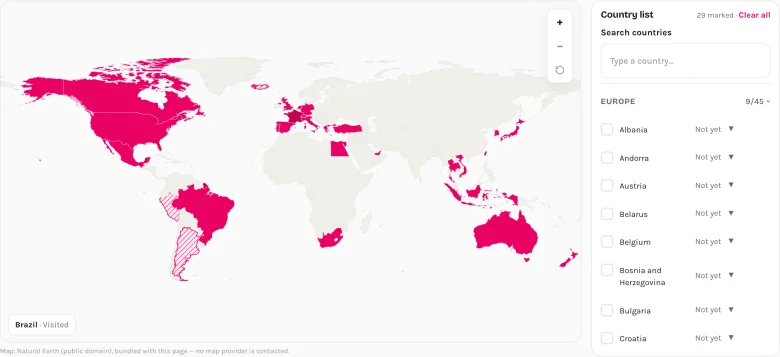
1. Mark the countries
Tap countries on the map or tick them in the list. Set a country to "Lived" or "Want to go" for a second colour. No account, nothing to install.
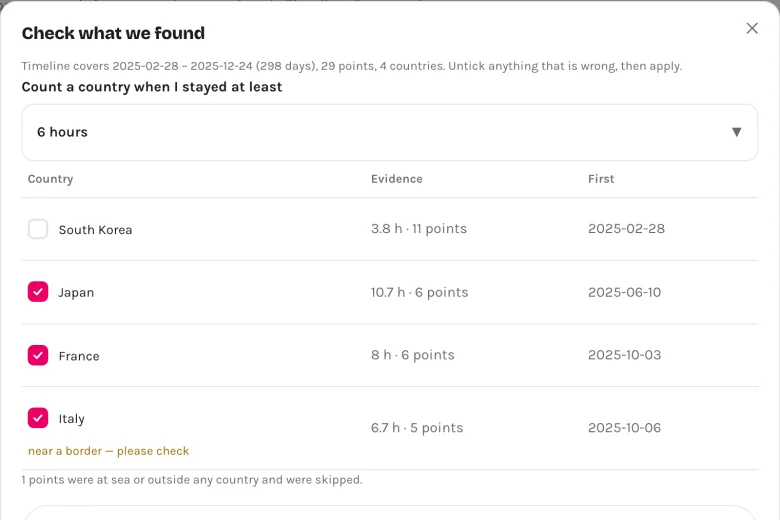
2. Or let your photos / Timeline fill it in
Pick your travel photos (a whole folder on a computer) or drop your Google Maps Timeline export. Your browser reads the locations and shows you a list to confirm — untick anything that is wrong.
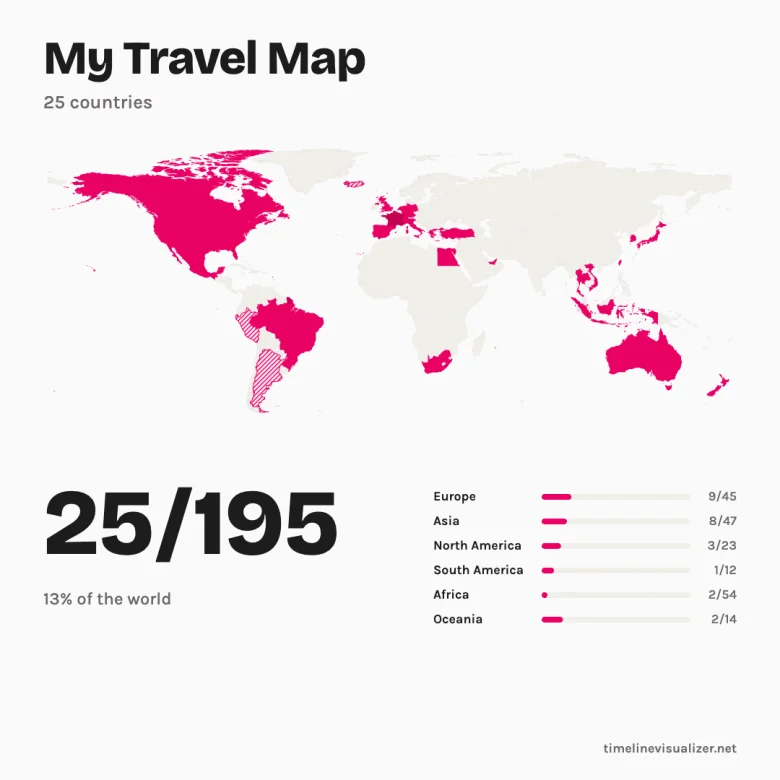
3. Download and share
Pick a size — square for Instagram, story for Reels, wide for a blog — and download the PNG. Copy the link to save the map or update it later.
Why use this map maker
From your photos
Every photo taken with a phone or camera carries a location. Pick a folder and the map fills itself — with the year of your first visit to each country.
From Google Timeline
The same file our travel-video tool uses. Countries are counted by how long you stayed, so airport layovers don't sneak in.
Nothing leaves your device
Photos and Timeline files are read in your browser. The map itself is bundled with the page, so not even a map provider hears from you.
Free, no watermark
Four sizes, two styles, the signature is optional. Pro only adds 2× resolution and the year-by-year block.
The link is the save
Your whole map is encoded in the URL — bookmark it, come back next year and add a country. Need something shorter for a bio or a chat? One press makes a 6-character short link.
Embed it on your blog
One iframe tag puts a read-only copy of your map on your About page or travel blog. Update the link, and the embed updates — no plugin, no script.
193, 195 or everything
Count UN members only, add Vatican and Palestine, or include every territory. Your percentage follows.
How many countries are there per continent?
The denominators this tool uses, for the "195" scope (193 UN members plus Vatican City and Palestine). Switch scopes above and the bars follow.
| Continent | Countries | Examples |
|---|---|---|
| Europe | 45 | France, Italy, Spain |
| Asia | 47 | India, Japan, Thailand |
| North America | 23 | Canada, Mexico, United States |
| South America | 12 | Argentina, Brazil, Peru |
| Africa | 54 | Egypt, Kenya, South Africa |
| Oceania | 14 | Australia, Fiji, New Zealand |
| Total | 195 |
Questions
- What counts as visiting a country?
- Whatever you say it does — this is your map. When we generate it from your Timeline we count a country once you spent at least 6 hours there (you can change that to 1 or 24 hours, or override any country). From photos, any geotagged photo counts.
- Do layovers count?
- Up to you. Airport-only stops usually stay under the 6-hour rule, so the Timeline import leaves them out; tick them in the confirmation list if you want them.
- 193, 195 or 250 — how many countries are there?
- The UN has 193 member states. Most travel communities also count Vatican City and Palestine (195). Switch to "all countries and territories" to include places like Puerto Rico, Hong Kong, Greenland or Taiwan in the total.
- Is anything uploaded?
- No. Your photos and Timeline file are read in your browser and never sent anywhere. This page even ships its own map, so it makes no request to a map provider — open the Network tab in DevTools and check.
- Can it read my photos or Google Timeline?
- Yes. Photos: pick them (or a whole folder on a computer) and we read only the GPS and date stored inside each file. Timeline: export it from Google Maps (see the guide) and drop the JSON here. Most exports only hold the last few months, so photos are the better source for older trips.
- Can I embed the map on my website?
- Yes. Press "Embed" under the map to copy an iframe tag — paste it into any blog, About page or WordPress post (the Custom HTML block). It shows a read-only copy of your map with the count and a small credit line, and stays in sync with the link inside the tag. It makes no request to a map provider, so it does not slow your page down or add trackers.
- How do I save or share my map?
- Copy the link — the whole map is encoded in it, no account needed, and nothing is stored anywhere. If the link is too long for a bio or a chat, press "Short link": we then keep the map state (countries, title, colours — never your photos or files) under a 6-character code on our server and redirect visitors to it. The same map always gets the same short link. Your last map is also kept in this browser.
More free tools
Travel video from Google Timeline
Turn your Timeline export into an animated route video — free, rendered on your device.
Google Timeline Viewer
See your Google Maps Timeline on a computer — browse visits and routes day by day. Read in your browser, nothing uploaded.
States Visited Map
Mark the US states you have been to, or generate the map from your photos or Timeline. Free PNG, no watermark.
Photo Map
Drop your travel photos and see them on a map — read on your device, nothing uploaded. Export one beautiful image, free.