See every country you've visited — generated from your photos (or Google Timeline)
Published Aug 30, 2026 · 4 min read
In this article
Every "countries I've visited" map tool on the web starts from a blank map and asks you to remember. You don't have to. Every photo taken with a phone or camera carries its location and date, so the map can be built from the photos themselves — and it will catch the weekend in Luxembourg you forgot about.
The Countries Visited Map reads that data in your browser. Nothing is uploaded; the page even ships its own map, so it never contacts a map provider.
What you need
- A computer (Mac, Windows, Linux) with your photos in a folder — the whole library or just the travel years. This is the route that covers a lifetime.
- Or an iPhone, picking photos from one trip at a time (the iPhone converts each photo before handing it to a website, so a few hundred at a time is the comfortable limit).
- Android: the system hides photo locations from websites, so the photo route is not available there. Use Google Timeline or mark by hand.
Screenshots and photos received in chat apps usually have no location and are simply skipped.
Step 1 — Pick your photos
Open the tool, choose From photos, then either drag a folder onto the box or press Choose a folder.
The page reads only the small metadata block at the start of each file (GPS and date), not the image itself, so ten thousand photos take about a minute on a laptop.
Step 2 — Check the list
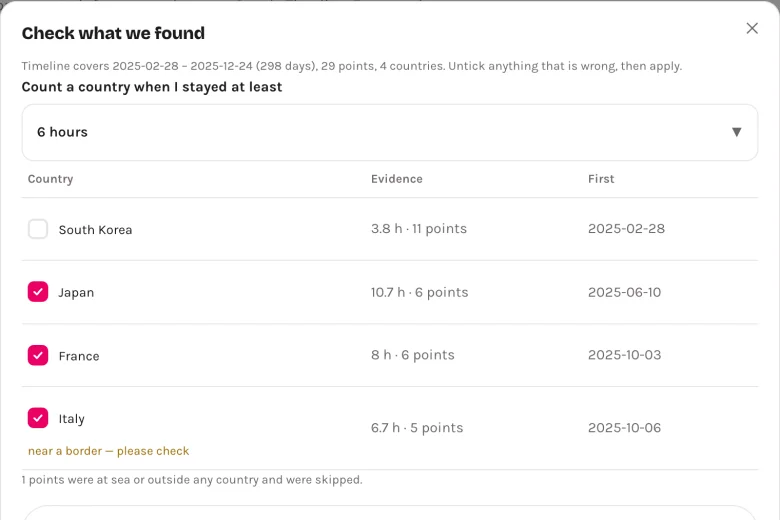
You get a list of the countries found, with how many photos were taken in each and the date of the first one. Untick anything that looks wrong — a photo geotagged from a plane, say — and press Add.
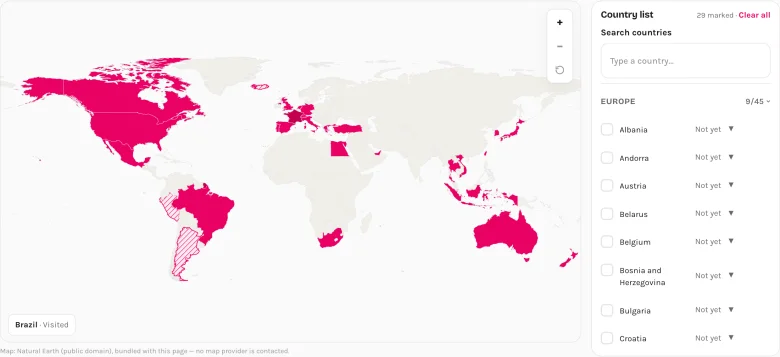
Countries land on the map as Visited. Set any of them to Lived for a second colour, or add Want to go countries by hand.
Step 3 — Download the image
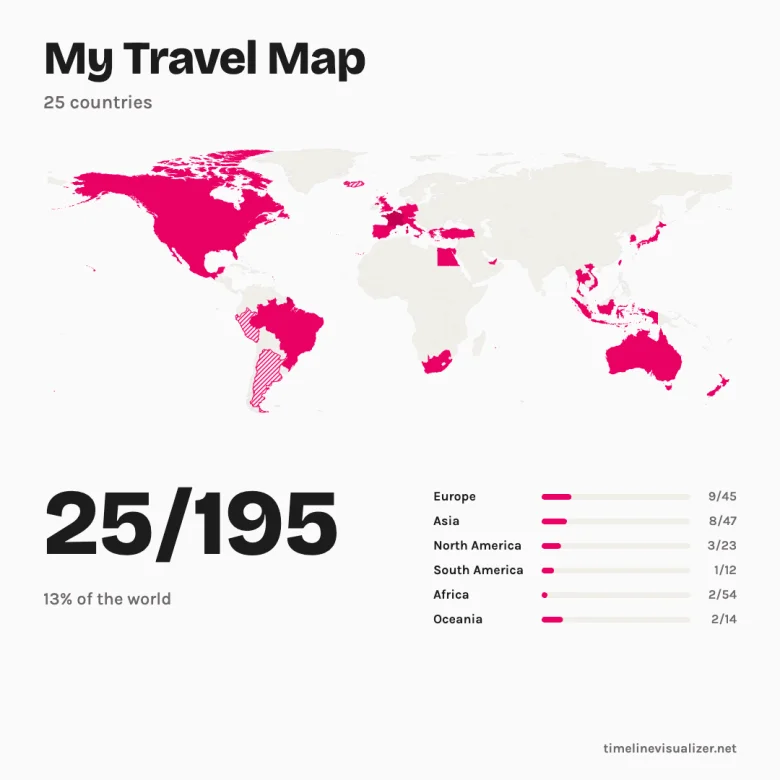
Pick a size — square for an Instagram post, story for Reels and Stories, wide for a blog — and download the PNG. Nothing is watermarked; the small site signature is optional.
Your whole map is encoded in the page link, so Copy link is the save button. Bookmark it, come back next year, add a country.
Two more ways to get it out of the tool:
- Short link — the full link is long; one press turns it into a six-character
/s/…link that fits a bio or a chat message. (This is the one case where the map itself — countries, title, colours — is kept on our server, so the link can redirect. Photos and files never are.) - Embed — copies an iframe tag for your blog or About page. It shows a read-only copy of the map with the count and a small credit, and updates whenever you change the link inside the tag. No plugin, no script, no map provider called from your page.
What about Google Timeline?
The tool also reads the Timeline.json you can export from Google Maps (same file our travel video tool uses). It is precise — a country counts once you spent six hours there, so airport layovers stay out — but for most people it only holds the last few months, because Timeline auto-delete is often set to 3 months without anyone remembering choosing it. Here is why, and how to keep more.
So the practical combination is: photos for the lifetime map and first-visit years, Timeline for the exact recent trips. Both imports merge into the same map; nothing you marked by hand gets overwritten.
How many countries are there, actually?
The tool counts 195 by default — the 193 UN member states plus Vatican City and Palestine, which is what most travel communities use. Switch to 193 for UN members only, or to all countries and territories if you want Hong Kong, Puerto Rico or Greenland in the total. The percentage follows whichever you pick.
Privacy, in one paragraph
Photos and Timeline files are opened by your browser and never leave your device. The map itself (Natural Earth, public domain) is bundled with the page, so — unlike our video tool, which fetches map tiles — this page makes no request to any map service at all. Open the Network tab in your browser's developer tools while you import and you will see nothing go out.