Why does my Google Timeline only have the last 3 months? (Auto-delete, and how to keep 36)
Published Aug 27, 2026 · 3 min read
Available in: English · 日本語 · 한국어 · Bahasa Indonesia · Tiếng Việt · 繁體中文
In this article
You export your Timeline, load it, and the video starts on a date about three months ago — nothing before it, even though you have had Google Maps for years. The cause is one setting, and it can be fixed — though what was already deleted does not come back.
The cause: "Auto-delete Timeline" is set to 3 months
Google Maps can automatically delete Timeline data older than 3 months, 18 months or 36 months. If your data begins around 90 days ago to the day, that setting is on and set to 3 months. Google's help page does not say what the default is, but on a phone where Timeline was turned on for the first time on 14 September 2026, the account page showed auto-delete already on at 3 months the same day. So if you never touched it, 3 months is what you have.
What it does not mean: your phone is not broken, the export did not fail, and the tool is not hiding anything. Those months were deleted on the device, and Google does not keep a copy unless you had Backup on.
Check and change it
iPhone
- Open Google Maps → tap your profile picture → Your Timeline.
- Top right, tap ⋯ (More) → Location & privacy settings.
- Under "Location settings", tap Auto-delete Timeline data.
- Choose 36 months, or turn auto-delete off, and confirm.
Android
- Open Google Maps → profile picture → Your Timeline.
- Top right, ⋯ (More) → Location & privacy settings.
- Under "Location settings", tap Auto-delete Timeline and pick 36 months or off.
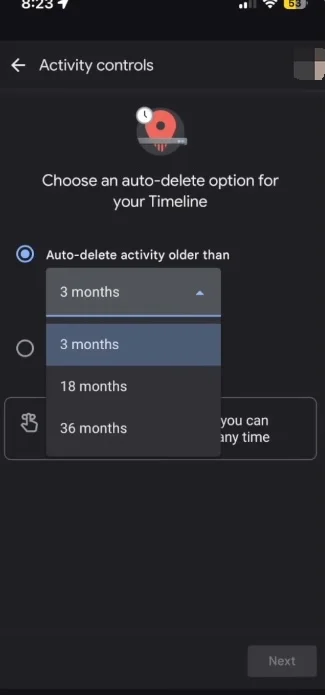
Changing the setting stops future deletion. It does not bring the old months back — if they were deleted, they are gone, unless you had a backup (see below).
What you can still make today
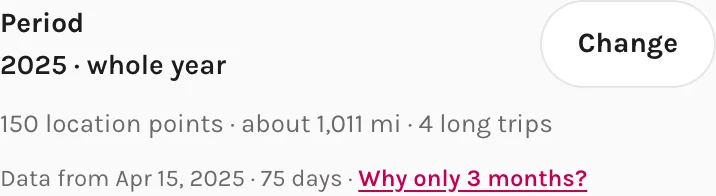
Three months is enough for a video, and often a better one: a single trip or a season reads more clearly than a whole year. In Timeline Visualizer the period picker already shows the exact range your file covers, and if you took a trip in that window it is listed under "Trips found on your device" — pick it and the dates are set. Everything runs in your browser; the file is never uploaded.
Keep the whole year for next time
- Set auto-delete to 36 months or off (steps above). Do it today: deletion runs on the device, and every day you wait is a day lost.
- Turn on Backup: Your Timeline → cloud icon → Backup. Google requires auto-delete to be off first, and changes take a few days to reach the backup. With Backup on, a new phone can import your history — the full steps are in our restore guide.
- Export once a year and keep the file. A
Timeline.jsonon your computer is the only copy Google cannot delete.
"I never set this"
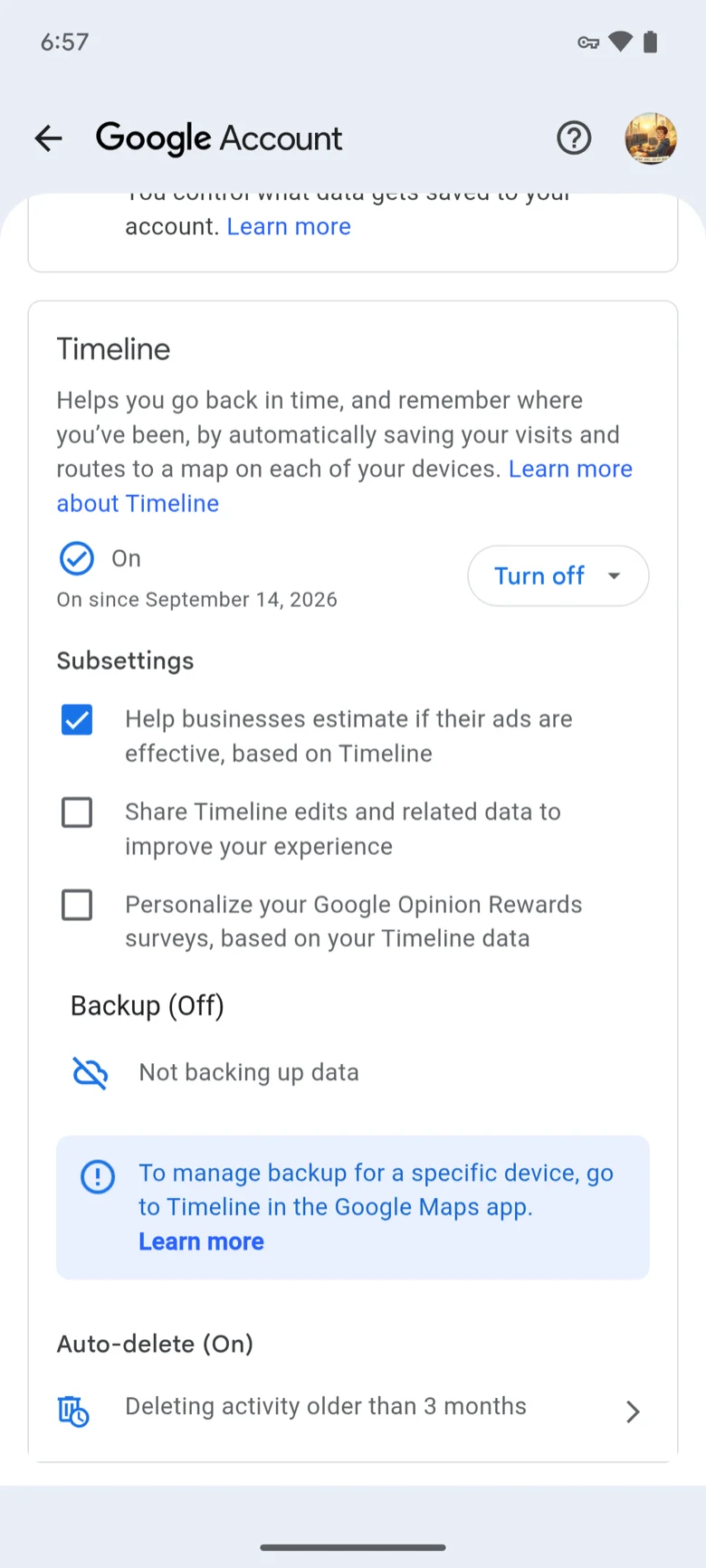
That is what almost everyone says. Whether it was a default or a tap years ago, the auto-delete screen is three taps deep in a menu almost nobody opens, so nobody notices until the video comes out short. Check it once now, and next year's video will have twelve months in it.
Ready to make this year's — even if it is only three months of it? Open Timeline Visualizer, choose your export, and press Create video.
Menu names follow Google's help page "Manage your Google Maps Timeline" as of August 2026; they can differ slightly by app version.