Timeline Visualizer Android app (APK): how to install it — and when the web version is the easier pick
Published Aug 26, 2026 · 3 min read
Available in: English · 日本語 · 한국어 · Bahasa Indonesia · Tiếng Việt · 繁體中文
In this article
The Timeline Visualizer Android app is the open-source google-timeline-visualizer project. It is not on Google Play; you install it directly from the project's GitHub releases. Here is that install step by step, then a first travel video made with it. On an iPhone, or would rather not install anything? This website does the same job in the browser — see the last section.
Before you start
- Android 8.0 or newer. Checked against release v2.4.1 (24 Aug 2026): the file is
TimelineVisualizer-v2.4.1.apk, about 6.6 MB. - No Google sign-in, no location permission, no account. The app only reads the JSON file you pick and writes the MP4 you create.
- Your Timeline export. You need
Timeline.jsonfrom Google Maps first — the export guide covers every phone.
Install the APK (5 steps)
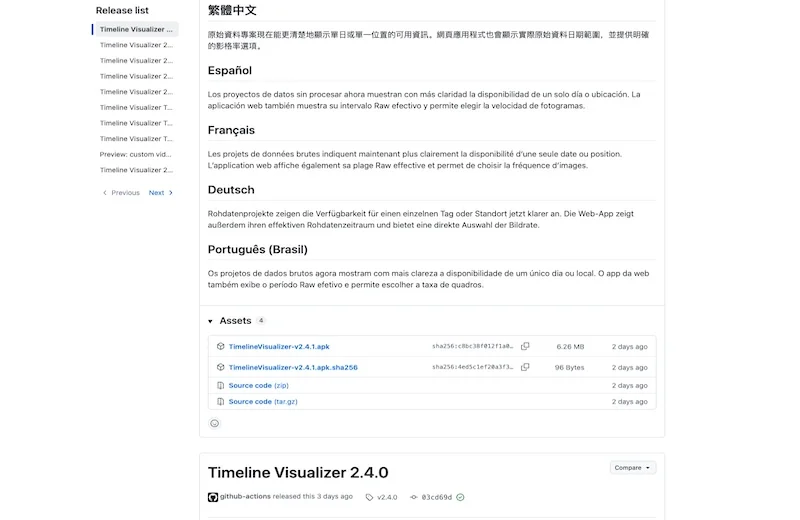
- On your phone, open the latest release on GitHub and tap
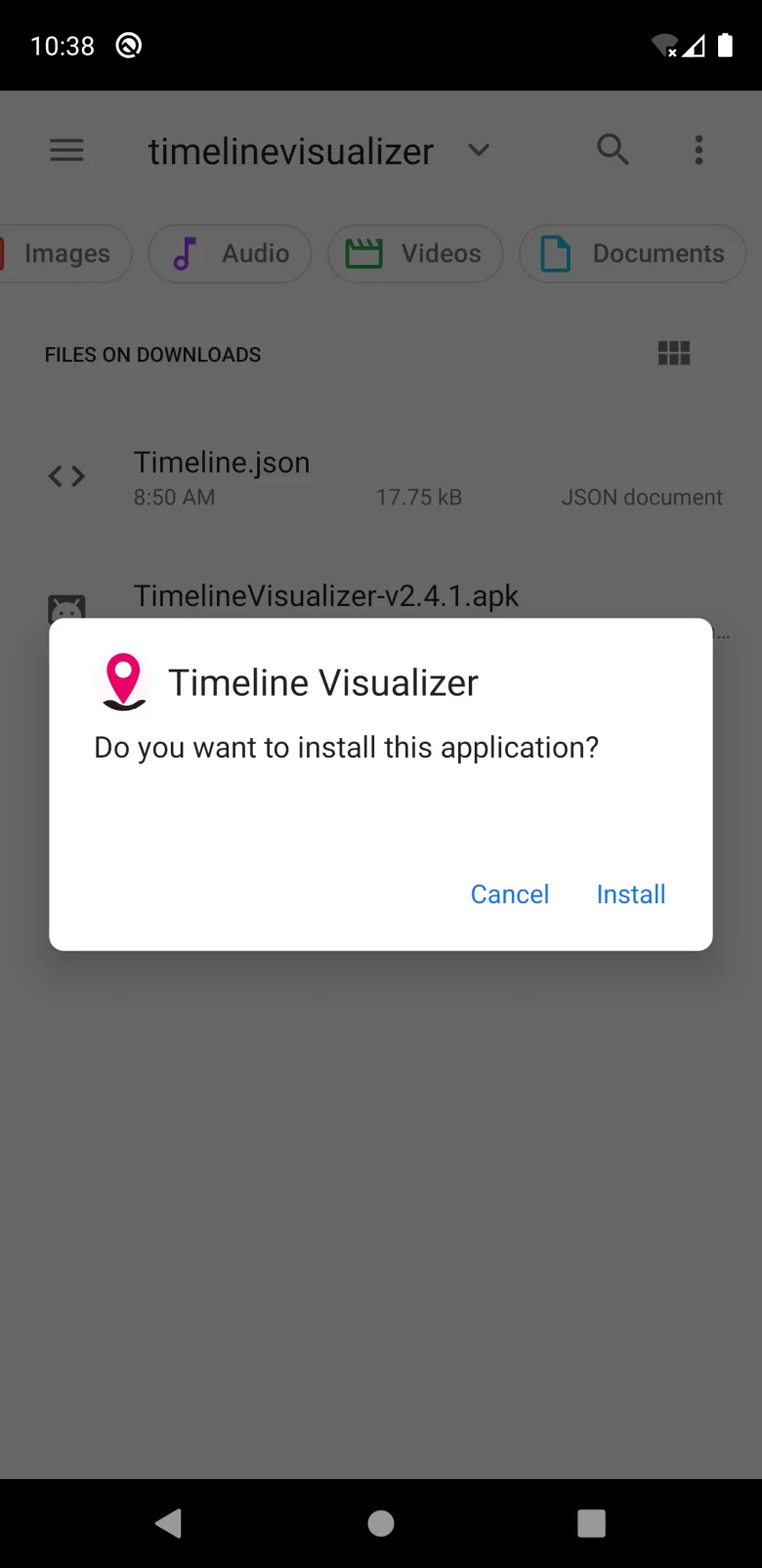
TimelineVisualizer-v2.4.1.apkunder Assets. Chrome may warn that this type of file can harm your device — that is the standard warning for every APK; confirm the download. - Open the downloaded file (notification shade, or the Files app → Downloads). The first time, Android shows a security notice about unknown apps — tap Continue.
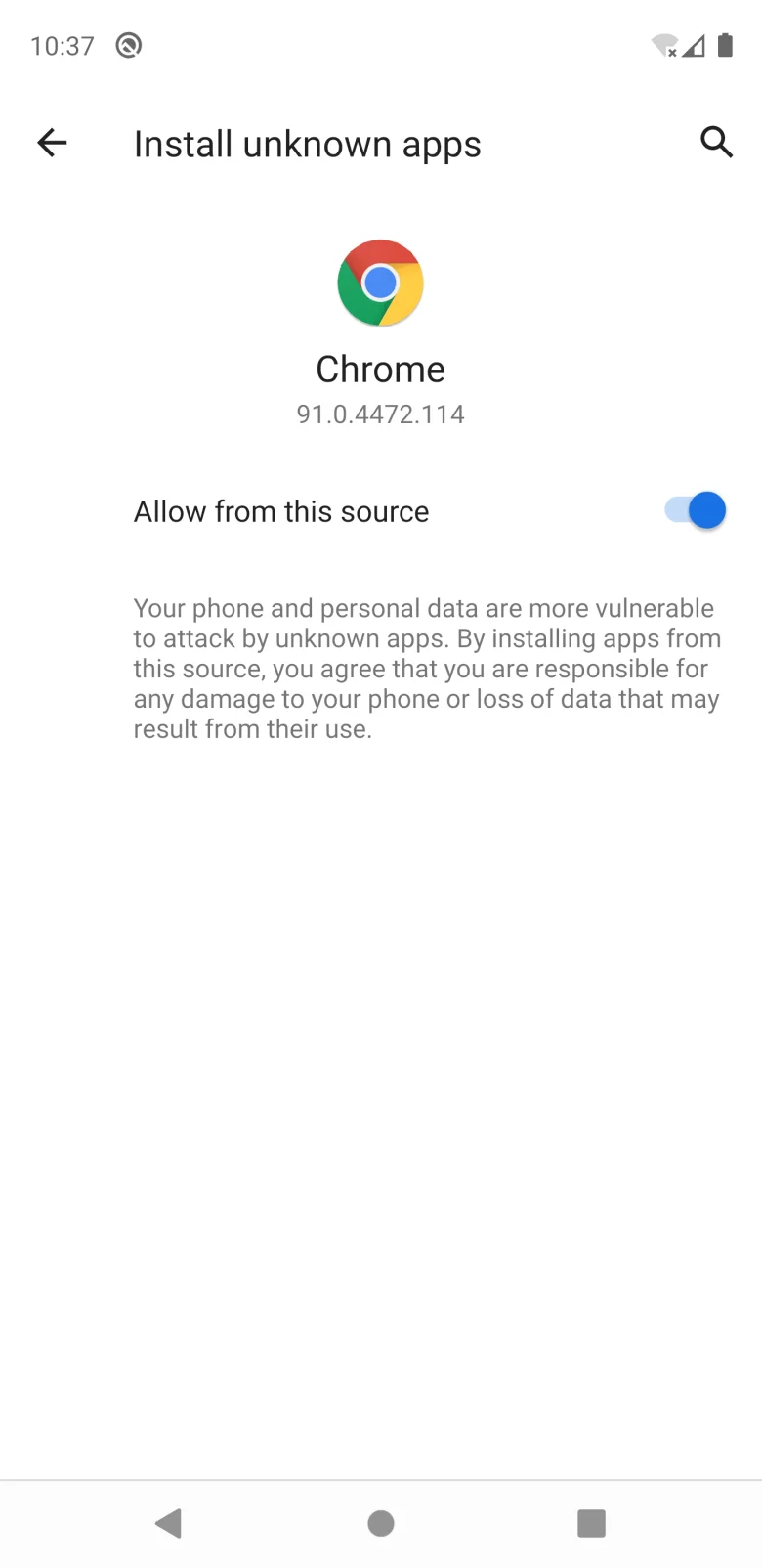
- If Android says your phone is not allowed to install unknown apps from this source, tap Settings in that dialog and switch on "Allow from this source". The "source" is the app you downloaded the APK with — usually Chrome — and the switch only allows that one app to install APKs; it is not a global setting.
- Go back and tap Install. Google Play Protect may scan the app first; let it finish.
- Tap Open. You can turn "Allow from this source" off again afterwards if you like.
Optional check: the release also ships a .sha256 file. If you know how to compare a checksum, do it; if not, downloading straight from the GitHub page is already the important part.
Make your first video
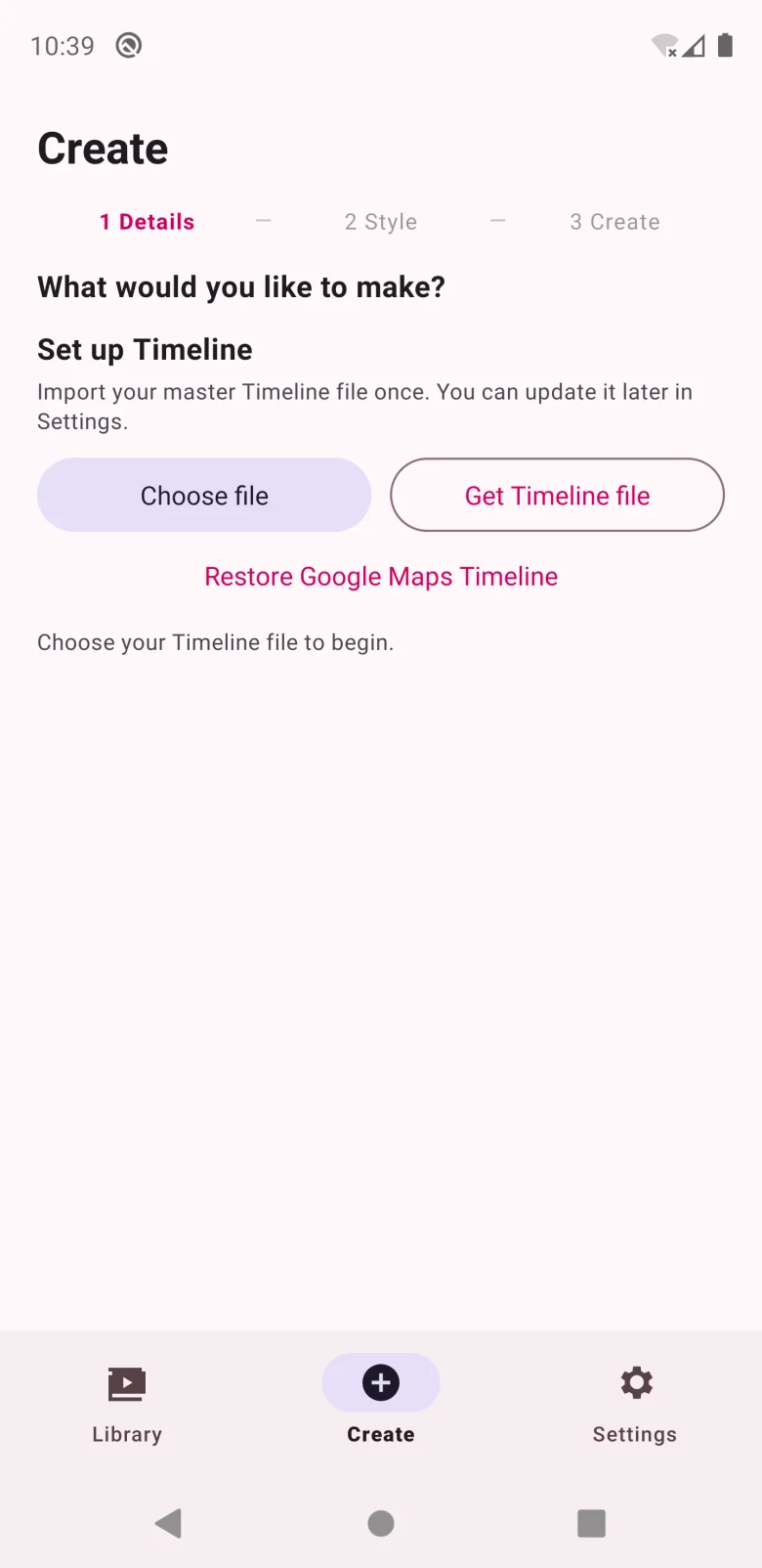
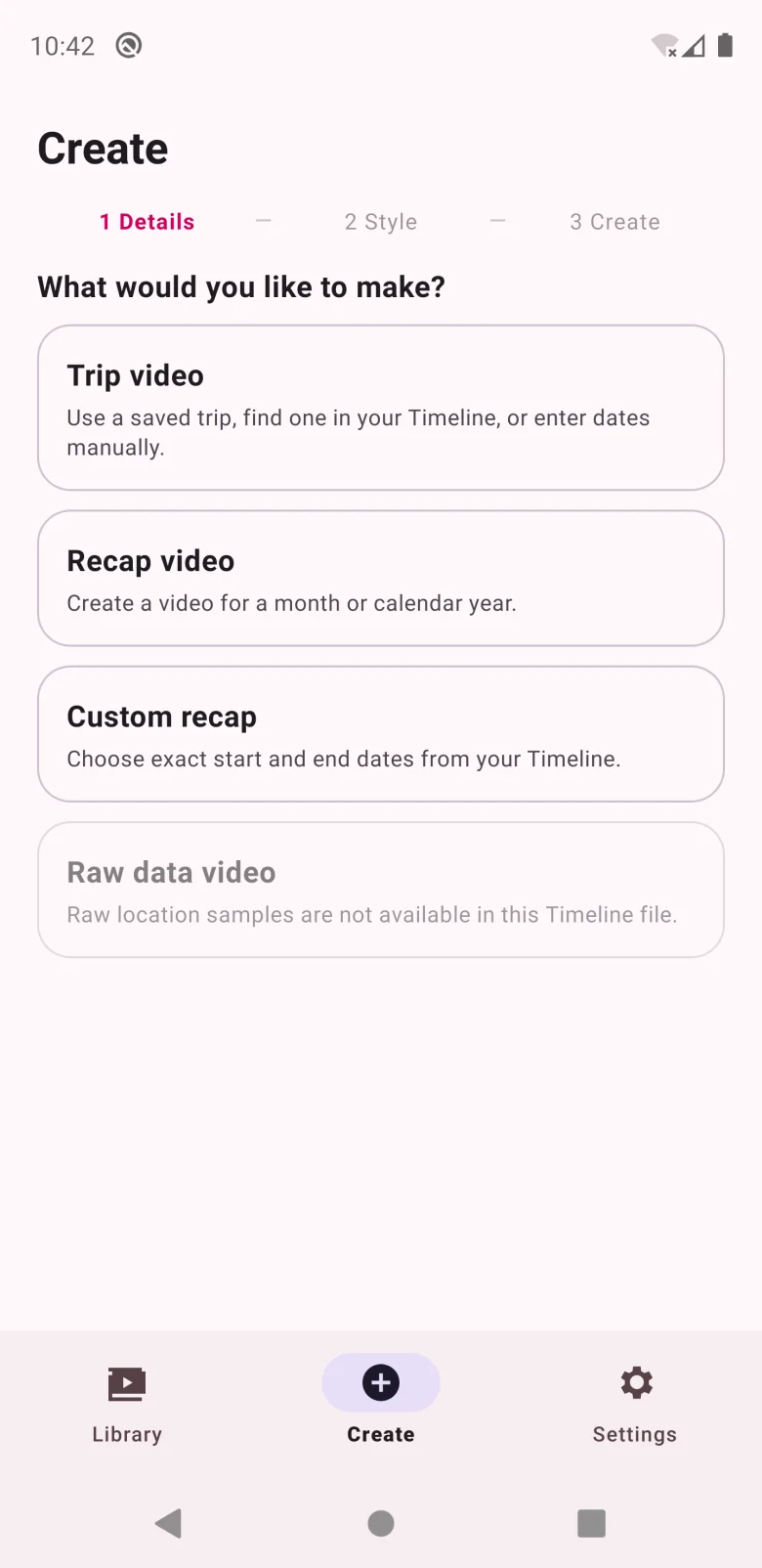
The app works in three steps — 1 Details → 2 Style → 3 Create — on the Create tab.
- Set up Timeline (first launch only): tap Choose file and pick your
Timeline.json. The app imports it once; you can replace it later under Settings. - What would you like to make? — Trip video (a trip the app finds in your Timeline, or dates you enter), Recap video (a whole month or calendar year), Custom recap (exact start and end dates), or Raw data video when your export contains raw location samples.
- Style: pick a format — square 480p / 720p / 1080p, portrait 1080 × 1920 for Reels, TikTok and Shorts, or landscape 1920 × 1080 — and a camera style. Then Create. The finished MP4 waits in the Library tab, ready to share on Instagram, TikTok or WhatsApp.
On an iPhone? Or just don't want to install anything?
There is no iOS version of the app. This website is the same idea, running in your browser — on iPhone, Android or a computer, with nothing to install and the file never leaving your device. It also adds a few things the app does not have: background music, an automatic video length, a free privacy zone that hides your home, and six languages. The honest side-by-side is in web version vs the original app.
Troubleshooting
- "App not installed" — usually a corrupted download; delete it and download again from the releases page.
- The file picker cannot find Timeline.json — Google Maps saves it to Downloads (or the folder you chose); on some phones it is under Internal storage → Download.
- Timeline.json is 0 KB — it was never fully written or downloaded from the cloud; see Timeline.json is empty? The fix.
- Updating — the app does not auto-update. Download the newer APK from the same page and install it over the old one; your settings stay.