Google Maps Timeline: how it works, how to turn it on and view it, and why it stops recording
Published Sep 14, 2026 · 6 min read
Available in: English · 日本語
In this article
Say you want to look back at where a trip took you last spring. On your phone, open Google Maps, tap your profile picture, then Your Timeline, and the visits and routes are there day by day. On a computer the same menu does not exist, and on a new phone the history may not follow you. Everything about Timeline comes back to one fact: since 2024 it is stored on the device, not in your Google account. Here is how to turn it on, read it, fix it when it stops recording, keep it, and get it onto a computer. iPhone first, then Android.
What Timeline is
Timeline is Google Maps recording where your phone went, when, and how (walking, driving, transit), and turning that into a daily log of visits and routes. It is off by default; nothing is recorded until you turn it on. The data stays on the phone. Google keeps an encrypted copy on its servers only if you switch on Backup, separately on each device. That is why there is no Timeline on the Google Maps website, and why changing phones needs a backup.
Turn it on
iPhone
- Open Google Maps → your profile picture or initial → Your Timeline.
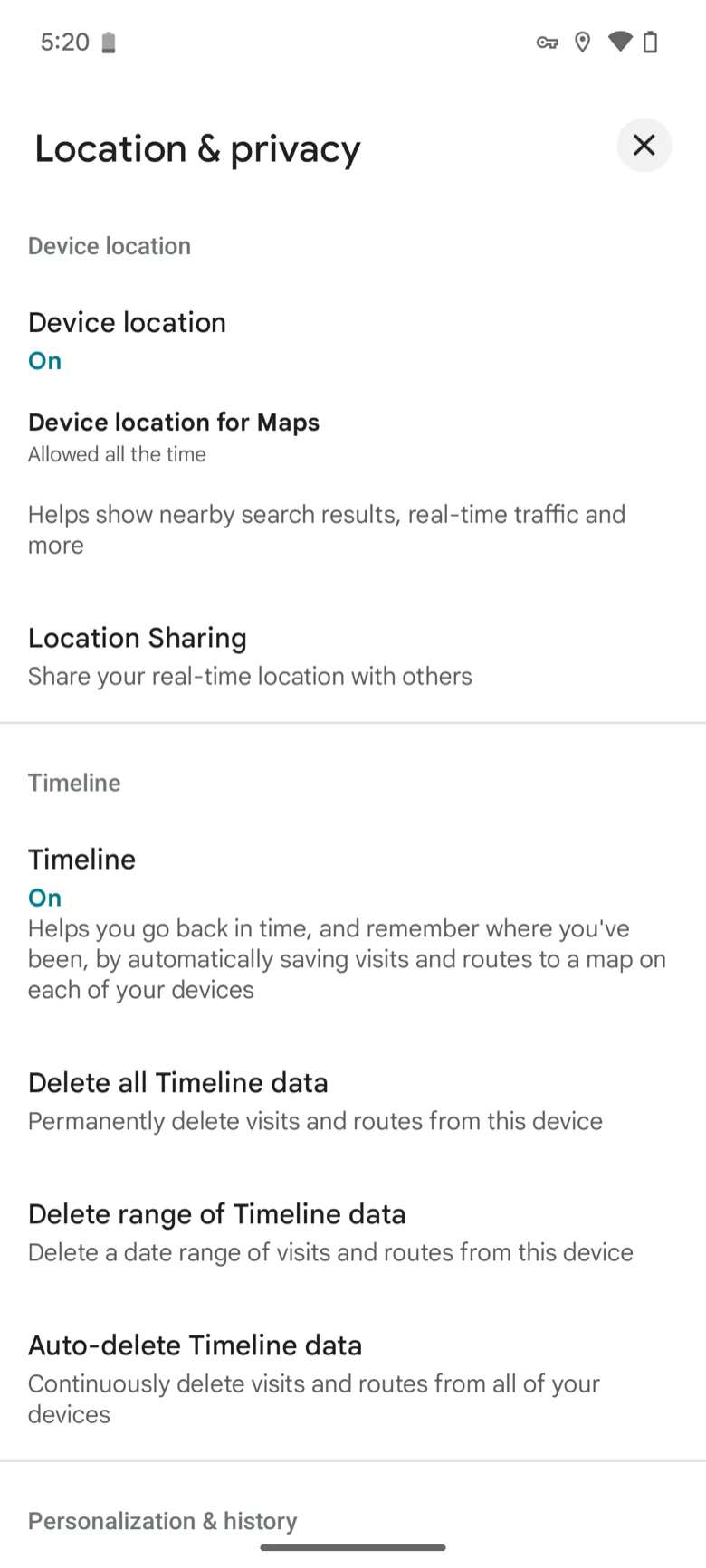
- Tap More → Location & privacy settings.
- Under Location settings, it should say "Location Services is on". If it says Location Services is not set to always, tap it and choose Location → Always.
- Under Location settings, tap Timeline is off, then under Timeline tap Turn on → Turn on.
Step 3 is where most iPhones get stuck. With location set to "While Using the App", recording stops the moment you leave Google Maps. Timeline needs Always. The app must be version 6.93 or newer.
Android
- Open Google Maps → profile picture or initial → Your Timeline.
- Tap More → Location & privacy settings.
- Under Location settings, check it says "Location is on"; if it says Location is off, tap it and turn Location on.
- On the same screen, check it says "Timeline is on"; if not, tap Timeline is off and turn it on.
Google Maps must be 11.106 or newer, and Timeline is not available on Android Go phones.
View it, by day and by place
- Today: profile picture → Your Timeline. The map is at the top, the list of visits and routes below it.
- Another day or month: on iPhone tap Show calendar, on Android tap Today at the top. Swipe the calendar left or right and tap a day.
- The big picture: the tabs at the top, Places / Cities / World. Places lists the spots you go to often and when you were last there; Cities counts the cities you have been to; World lists countries. "When was I last at that café?" is answered on the Places tab.
Routes only show one day at a time. There is no "whole trip on one map" view in the app; for that, see the first way to view it on a computer below.
When it does not record, or gets places wrong
Check in this order.
- Both switches on. Location and Timeline must both be on (steps 3 and 4 above). One without the other records nothing.
- iPhone: Always plus Precise Location. In the iOS Settings app → Privacy & Security → Location Services → Google Maps, choose Always and turn on Precise Location. With Precise Location off, positions are rounded to a few hundred metres and routes come out as straight lines between rough points.
- iPhone: Low Power Mode and Background App Refresh. Low Power Mode throttles background location, so a day of travel comes out with gaps. Settings → General → Background App Refresh should be on for Google Maps.
- App version. 6.93 on iPhone, 11.106 on Android. Older versions do not even show the menu.
- You just turned it on. Recording starts from that moment. Give it a few days.
- Wrong shop in a dense area. That is a limit of location estimation, not a setting. Tap the visit and correct the place; later visits get better.
- Work or school account. Google Workspace admins can disable Timeline for the whole organisation. Switch to a personal Gmail account in the profile menu and check whether Your Timeline appears.
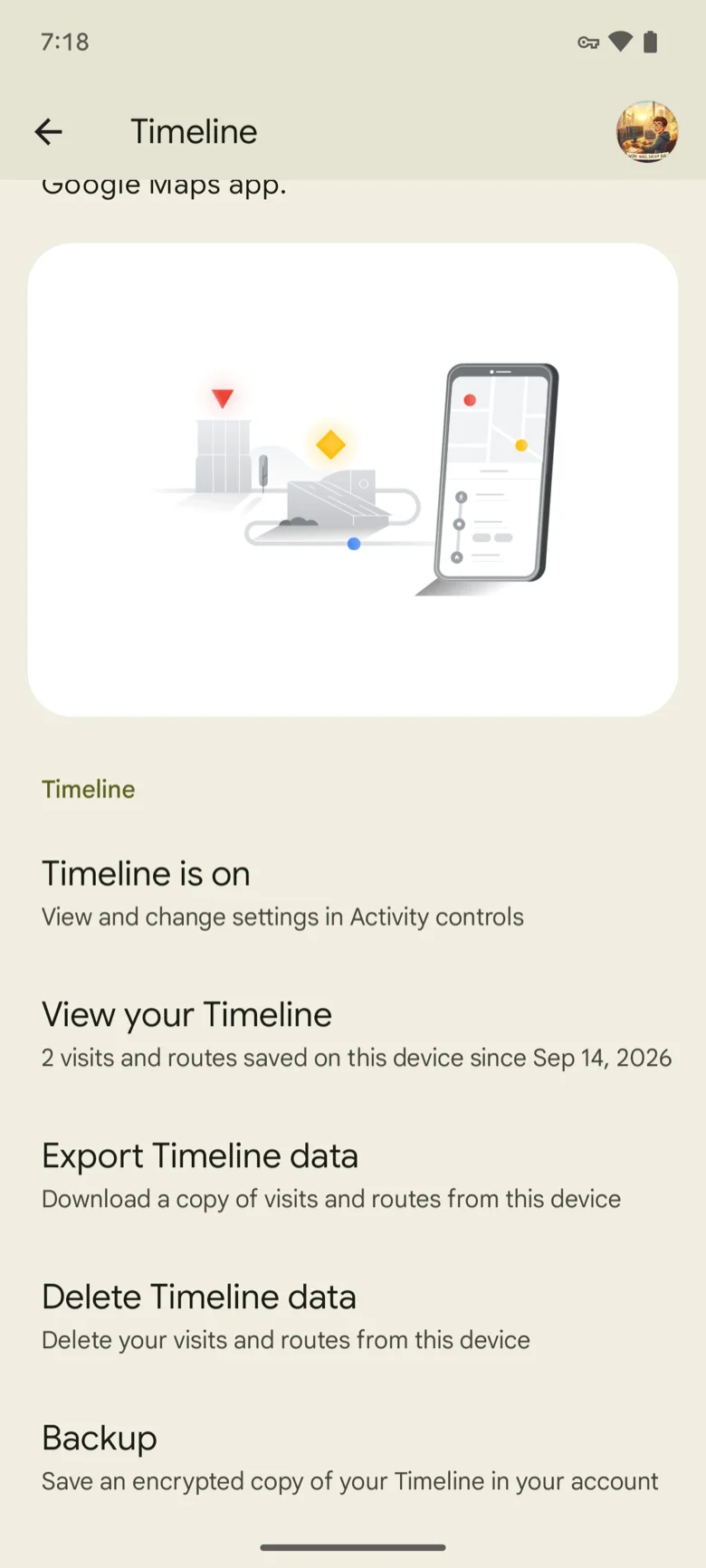
- Your Timeline is not in the profile menu at all. On a phone where Timeline had just been turned on, the entry did not appear in the Maps profile menu even after a restart. The way in on Android is the phone's Settings → Location → Location services → Timeline → View your Timeline; the same page shows how many visits are saved and holds the Backup switch. Once a few visits exist, the menu entry shows up.
Auto-delete and Backup: two settings to look at now
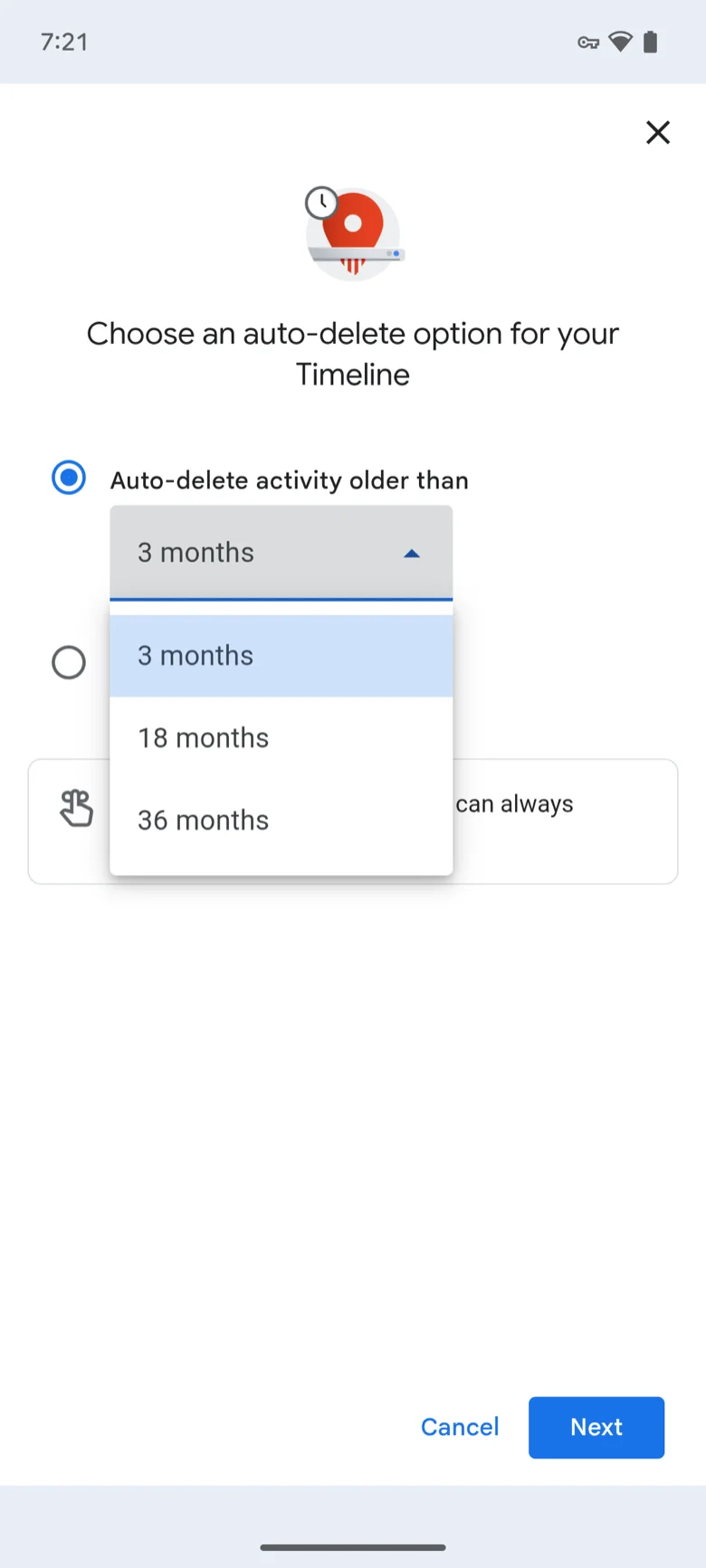
Auto-delete. Your Timeline → More → Location & privacy settings → Auto-delete Timeline (on iPhone, Auto-delete Timeline data). The choices are 3, 18 or 36 months. If it is set to 3 months, last year's trips are already gone; set it to 36 months to keep more. On a phone where Timeline had been turned on that same day, this setting was already on at 3 months — so treat 3 months as the starting point, not something you chose. More in why your Timeline only has the last 3 months.
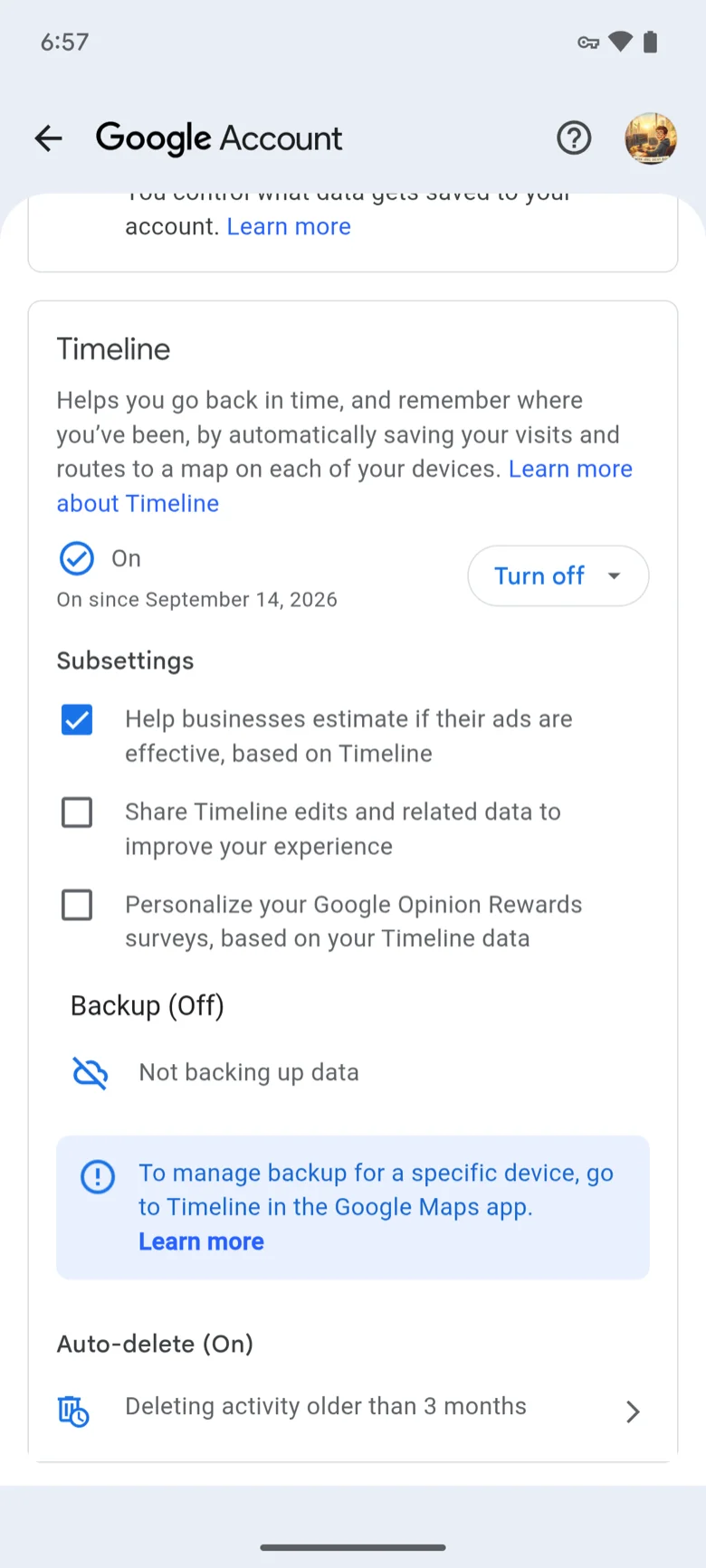
Backup. Your Timeline → the cloud icon at the top right → turn on Backup. It has to be turned on per device, and changes take a few days to reach the backup. On a new phone: Your Timeline → cloud icon → pick the old device under Your backups → More → Import. If it has already disappeared, the steps and the traps are in Timeline disappeared? How to restore it.
Two ways to see it on a computer
The Google Maps website has no Timeline because, as Google's help page puts it, the data comes straight from the device. Signing in to timeline.google.com shows nothing. The data is not gone; there is simply no road from the computer to it.
1. Export from the phone and open the file on the computer
The whole Timeline can be exported as one file. iPhone: Google Maps → profile picture → Settings → Location & Privacy → Export Timeline data → Save to Files. Android: not in Maps but in the phone's Settings → Location → Location services → Timeline → Export Timeline data. Every menu and the fixes for a missing menu are in the export guide.
Move the file (Timeline.json, or location-history.json from an iPhone) to the computer with AirDrop, a cloud drive or email, and open it in the Google Timeline viewer. Visits and routes appear on a map by day, a whole month at once if you want, with stats. The file is read in the browser and never uploaded. For "one trip, one screen", this is the fastest way.
2. Use the app on a tablet
Install Google Maps on an iPad or Android tablet, sign in with the same account, and import the phone's backup (steps above). Bigger screen, but still the app: one day at a time.
Questions
Can I share my Timeline? In the app, one day at a time. To show a whole trip, export the file and turn it into a video instead.
Can I edit or delete Timeline from a computer? No. Partial deletion is only in the phone app; turning Timeline off or deleting it all for the account is done in My Google Activity.
Is it backed up to iCloud? No. Timeline backups go to Google's servers, encrypted, separate from your iCloud backup.
I exported and the file is empty. Timeline was off, or was only just turned on. The full list of causes is in Timeline.json is empty.
Load the exported file as it is and your route becomes an animated video — free, nothing uploaded.
Turn your Timeline into a travel videoMenu names follow Google's help page "Manage your Google Maps Timeline" (Android / iPhone & iPad / Computer, checked 14 September 2026). iOS setting names are from iOS 18.