See every US state you've visited — from your photos or Google Timeline
Published Aug 31, 2026 · 2 min read
In this article
Every "states I've visited" map on the web starts from a blank map and asks you to remember. You don't have to. Your photos carry the location of every trip you photographed, and your Google Timeline has every road trip your phone came along for — the States Visited Map reads both in your browser and fills the map for you.
Nothing is uploaded. The page even ships its own map (U.S. Census Bureau data), so it never contacts a map provider.
Two data sources, different strengths
- Photos reach back the furthest — often ten years or more. Pick a folder on a computer (or a trip's photos on iPhone) and every geotagged photo becomes evidence, with the year of your first visit to each state. Android hides photo locations from websites, so on Android use Timeline instead.
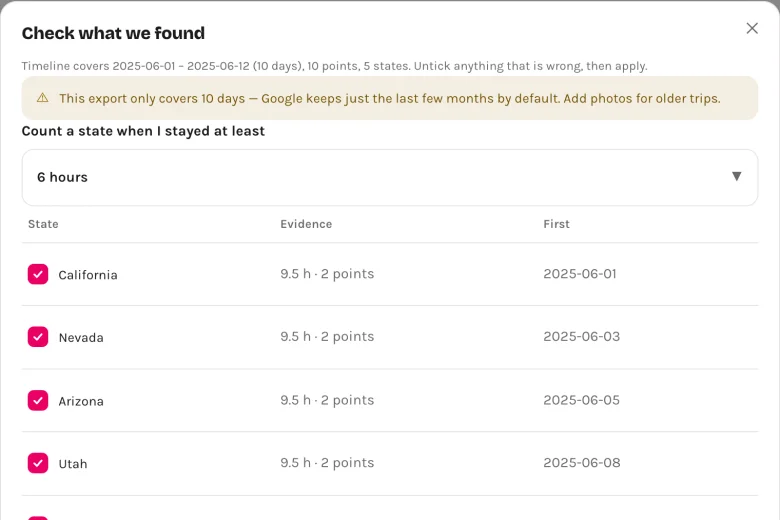
- Google Timeline is precise about the recent months. Unlike the world version of this tool — where three months of data rarely leaves your home country — three months of Timeline usually covers several states: weekend drives, holidays, work trips. A state counts once you spent six hours there (you can change that), so a highway drive-through doesn't sneak in unless you want it to. How to export your Timeline.
Say you export in September: the last three months already hold a Labor Day drive across a state line, a summer holiday, and a work trip that touched down in a third state. Each shows up in the confirmation list with the hours you actually spent there, so a fuel stop on the interstate does not count as a visit unless you tick it.
Step 1 — Pick your source
Open the tool, choose From photos (drag a folder straight onto the box) or From Google Timeline (drop the exported Timeline.json).
Step 2 — Check the map
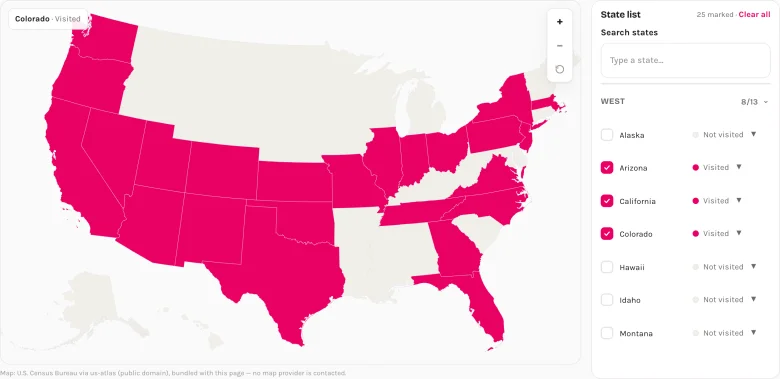
States land as Visited; set any to Lived for a second colour, add Want to go states by hand, and switch the count between the 50 states, 50 + DC, or everything including Puerto Rico and Guam.
Step 3 — Download and share
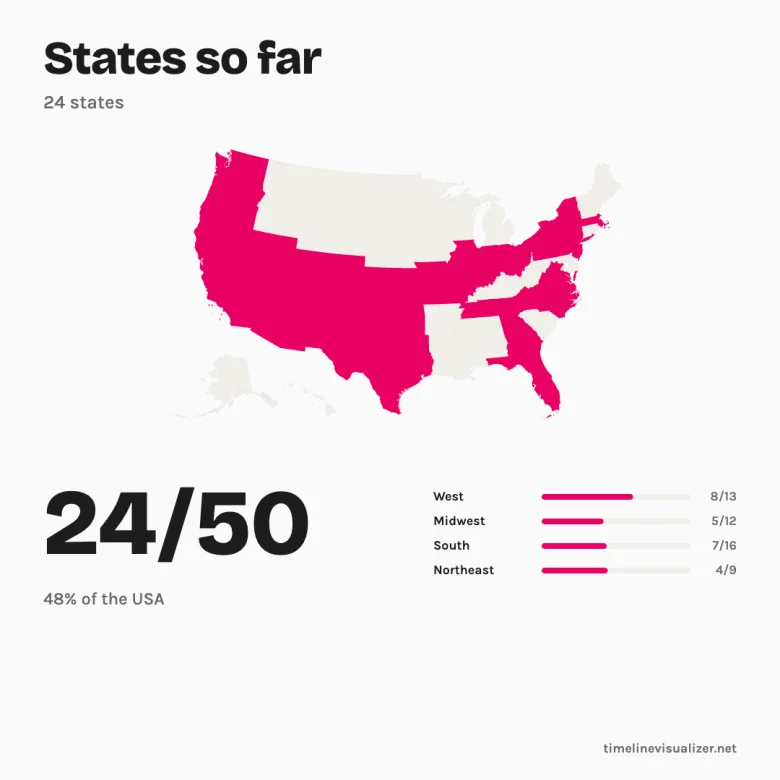
Pick a size — square for Instagram, story for Reels, wide for a blog — and download the PNG. No watermark; the small site signature is optional. The whole map is encoded in the page link, so Copy link is the save button; Short link makes a six-character version for a bio, and Embed gives you an iframe for your travel blog.
Privacy, in one paragraph
Photos and Timeline files are opened by your browser and never leave your device. The only thing our server ever stores is a short link's map state (states, title, colours) — and only if you press "Short link". Open the Network tab in your browser's developer tools while you import and you will see nothing go out.
Tracking countries instead? The Countries Visited Map works the same way, worldwide.