No Google Timeline? Make the travel video anyway — with one ChatGPT prompt
Published Aug 26, 2026 · 3 min read
Available in: English · 日本語 · 한국어 · Bahasa Indonesia · Tiếng Việt · 繁體中文
Timeline was never turned on, or auto-delete wiped everything — so the file Google gives you is empty. The good part: the video does not need Google's file. It needs a list of places with times. An AI assistant can write that file in ten seconds, and Timeline Visualizer reads it exactly like a real export.
Step 1: copy this prompt
Paste it into ChatGPT, Gemini, Claude or Copilot and replace the trip at the bottom with your own stops and dates.
Create a Google Maps Timeline export file for a travel video. Output a JSON file called Timeline.json in exactly this format:

{"semanticSegments":[{"startTime":"2026-05-03T09:00:00.000+02:00","endTime":"2026-05-03T13:00:00.000+02:00","timelinePath":[{"point":"48.8566,2.3522","time":"2026-05-03T09:00:00.000+02:00"},{"point":"47.9000,3.5000","time":"2026-05-03T10:30:00.000+02:00"},{"point":"45.7640,4.8357","time":"2026-05-03T13:00:00.000+02:00"}]}]}

Rules:
- One segment per leg between two consecutive stops, in chronological order.
- Each timelinePath has 3 to 8 points spread along a realistic route between the two stops (more points for longer legs), with "time" increasing from the first point to the last.
- "point" is "latitude,longitude" with 4 decimals, using the real coordinates of each place.
- Timestamps are ISO 8601 with the local UTC offset of that place.
- Legs longer than 500 km can go straight (they will be drawn as a flight).
- Output only the JSON, no comments or explanations, and provide it as a downloadable file named Timeline.json (not a zip).

My trip:
- 3 May 2026: London → Paris
- 6 May 2026: Paris → Lyon
- 9 May 2026: Lyon → Rome
- 12 May 2026: Rome → London
Tips that make the video better:
- 5 to 30 stops is the sweet spot. One stop per city is enough; the assistant fills in the road between them.
- Put real dates on the stops — the video's date range and the recap card come from them.
- Add an intermediate town on long drives if you want the route to follow the road instead of a straight line.
Step 2: save the file
Download the file the assistant offers. It should be called Timeline.json. If you get a .zip instead, unzip it first; if you only get the JSON as text, copy it into a new text file and save it as Timeline.json.
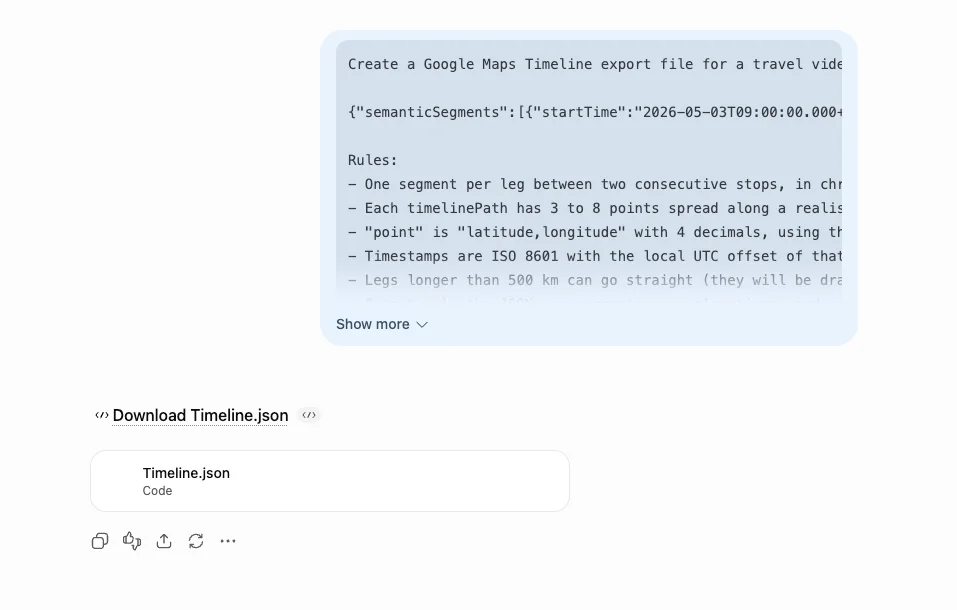
Step 3: make the video
Open Timeline Visualizer, choose that Timeline.json, pick a period and format, and create the MP4. Everything works the same as with a real export: camera styles, music, the privacy zone, Pro extras. The file stays in your browser — it is never uploaded.
Common problems
- "This file is not a Timeline export we recognise" — the assistant changed the format. Paste the error back to it and say "keep exactly the format I gave you, key names included".
- Only one dot, no route — the stops all have the same coordinates, or the times are not increasing. Ask for "times increasing within each segment".
- The route goes through the sea — that is a leg with only two points; ask for more intermediate points on that leg, or accept it as a flight.
- Dates look wrong in the video — timestamps are missing the UTC offset (
+02:00). Ask the assistant to add it.
If your real Timeline is only partly missing, the guides on restoring Timeline and empty Timeline.json files may get the real data back first.