How to find where a photo was taken (and why it sometimes can't be done)
Published Sep 4, 2026 · 3 min read
In this article
"Where was this photo taken?" has two very different answers depending on one thing: whose photo it is. Your own camera photos usually carry the exact location inside the file. A photo someone sent you usually doesn't — and no tool can read data that isn't there. Both cases are below, so you don't waste time on the wrong method.
Method 1 — Your own photos: read the location stored inside them
Every phone camera (and most modern cameras) writes the GPS coordinates into the photo file itself when location is on — it's part of the EXIF metadata, alongside the time and camera settings.
The fastest way to see it on a map: drop the photo into our free Photo Map tool. Your browser reads the location locally — the photo is never uploaded — and the pin lands on the exact spot. Zoom in to street level to see precisely where you were standing.

This works for one photo or a whole trip at once — drop a folder and every picture becomes a pin:
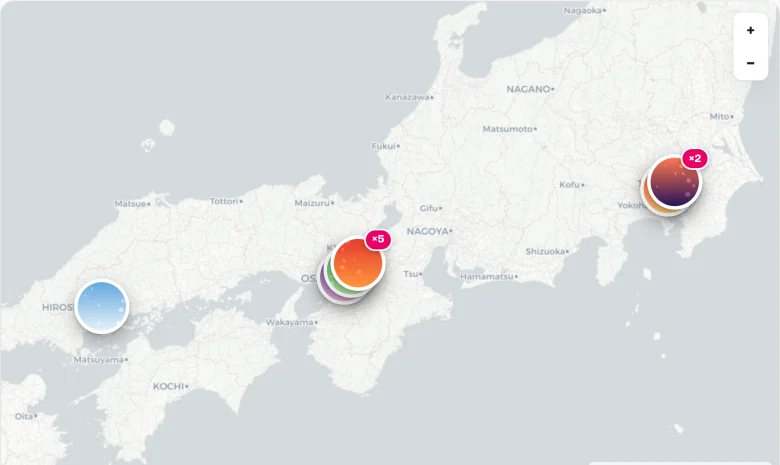
A few photos won't show a pin even here — see the next section for why.
Method 2 — Photos someone sent you: the location is usually gone
Here's the part most guides skip: chat apps strip the location on purpose. WhatsApp, Messenger, LINE, Telegram and most social platforms remove EXIF data (including GPS) when they compress a photo for sending — it protects the sender's privacy. Screenshots never had a location to begin with. So if a photo arrived through a chat app or was downloaded from social media, an EXIF tool will honestly report: no location data.
What you can still try for a location-less photo:
- Reverse image search — Google Lens (the camera icon in the Google app or Chrome) recognizes landmarks, storefronts and even distinctive landscapes surprisingly well.
- Read the picture itself — signs and their language, license plates, shop names you can search for, architecture style, which side of the road cars drive on, the position of the sun.
- Ask the sender for the original file — some apps can send a photo "as a file" or "as a document", which keeps the metadata intact. If they re-send it that way, Method 1 works again.
Be honest with yourself about accuracy here: these are educated guesses, not coordinates.
Method 3 — The map views already on your phone
If the photo is in your own library, your phone can often answer directly:
- iPhone (Photos app): open the photo and swipe up (or tap the ⓘ button) — a small map shows where it was taken. The Places album collects your whole library on one map.
- Google Photos (phone app): open the photo, swipe up, and the location appears with a map if the photo has one. The Search tab also has a map view of your photos — but only in the phone apps; the desktop website doesn't have it (that gap is exactly what Photo Map fills in the browser).
- Android caveat: Android's privacy rules hide photo locations from websites, so browser-based tools can't read them there — use the Google Photos app on the phone, or a computer for browser tools.
Which method should you use?
| Situation | Best method |
|---|---|
| Photo you took, on a computer | Drop it into Photo Map — exact pin, nothing uploaded |
| A whole trip's photos | Photo Map with the folder — every photo becomes a pin |
| Photo received in a chat app | Method 2 — the GPS is almost certainly stripped |
| Photo in your phone's library | Swipe up in Photos / Google Photos |
And once the "where" question is answered, the same photos can do more: turn a trip into an animated travel video or a countries visited map — all in the browser, nothing uploaded, free.